
How to monitor processor and graphics temperatures
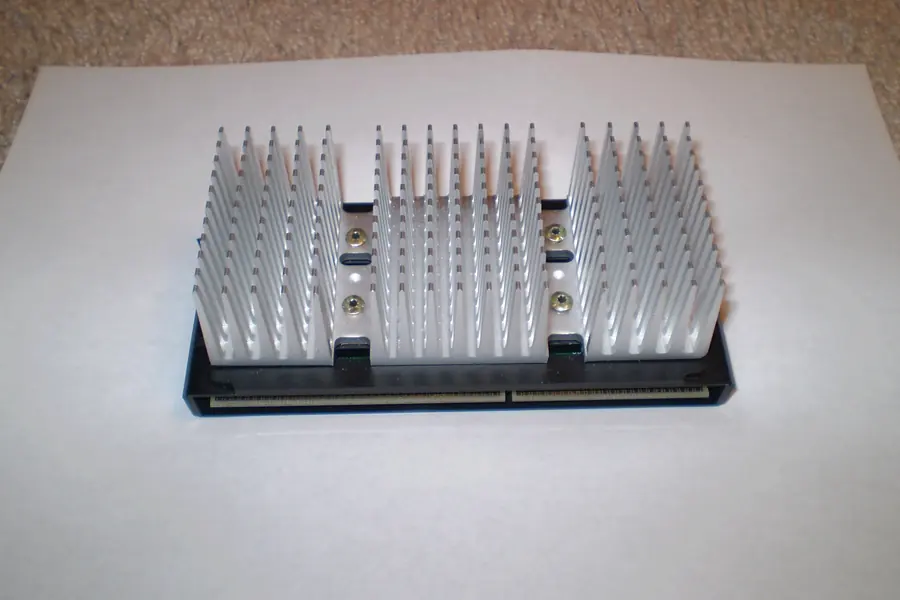
When a computer suddenly slows down, gets loud or shuts off during gaming or demanding work, temperature is often to blame. Fortunately, component temperatures can be monitored easily and the problem prevented. Let us explain how and which values are fine.
Why monitor temperatures
Both the processor (CPU) and the graphics card (GPU) heat up during work. When the temperature is too high, the computer slows itself down so as not to get damaged (this is called throttling), or it shuts off at a critical temperature. Monitoring temperatures helps you spot a problem before it limits you and extends the life of the computer.
Which temperatures are normal
Approximate values (exact limits differ by model):
- At rest (you are not doing anything) the CPU and GPU are roughly 30 to 50 degrees Celsius.
- Under load (gaming, video editing) 60 to 80 degrees is common.
- Above 85 to 90 degrees you are getting close to the limit and it is worth addressing.
Short spikes are not a tragedy, the problem is when temperatures stay high for a long time.
What to monitor temperatures with
A single free tool that shows temperatures in real time is enough. Choose a proven one and download it from the official site so you do not bring in something extra, more in the article free software and alternatives. These programs usually show:
- the current CPU and GPU temperature,
- the load of individual cores,
- fan speeds.
Some boards have temperature monitoring right in the BIOS too, but for monitoring during gaming a program in Windows is more practical.
When the temperature is a problem
Be alert if:
- temperatures under load approach 90 degrees and more,
- the computer shuts off or restarts by itself during gaming,
- performance suddenly drops (throttling), more in the article smooth gaming and FPS,
- the fans roar at full even during ordinary work.
What to do about overheating
The most common causes and solutions:
- Dust in the computer. Clogged fans and heatsinks are the most common reason. Cleaning helps, more in the article repasting and cleaning the computer.
- Old thermal paste. After years it dries out and needs to be replaced.
- Weak or stuck cooling. Sometimes a better cooler helps, more in the article how to choose processor cooling.
- Poor airflow. Check whether the case has a way to take in and exhaust air.
Regular maintenance is part of computer prophylaxis.
Conclusion
Monitoring processor and graphics temperatures is simple and worth it. A single free tool is enough and you know whether everything is fine. At rest expect 30 to 50 degrees, under load 60 to 80. When temperatures stay above 85 to 90 degrees for a long time, it is time to clean the computer, replace the paste or improve the cooling. That way you prevent both slowdown and damage.
Is your computer overheating or losing performance? Get in touch, we will clean it, repaste it and fine-tune the cooling.
We fix your computer's overheating
We clean the cooling, replace the thermal paste and dial in the temperatures so your computer runs reliably even under load. For households and businesses in Liptov alike.
Get in touchThis article is part of our Repair and maintenance overview.
Frequently asked questions
What is a normal processor temperature?
What can I use to monitor CPU and GPU temperatures for free?
What is throttling and why does a computer slow down at high temperature?
Why does a computer heat up and shut off during gaming?
How often does thermal paste need replacing?
When is it time to deal with an overheating computer?
Need help with IT?
We will take care of your computers, networks and security - for businesses and households in the Liptov region.
Contact us