
Hard drive series by brand: WD, Seagate and Toshiba by use case
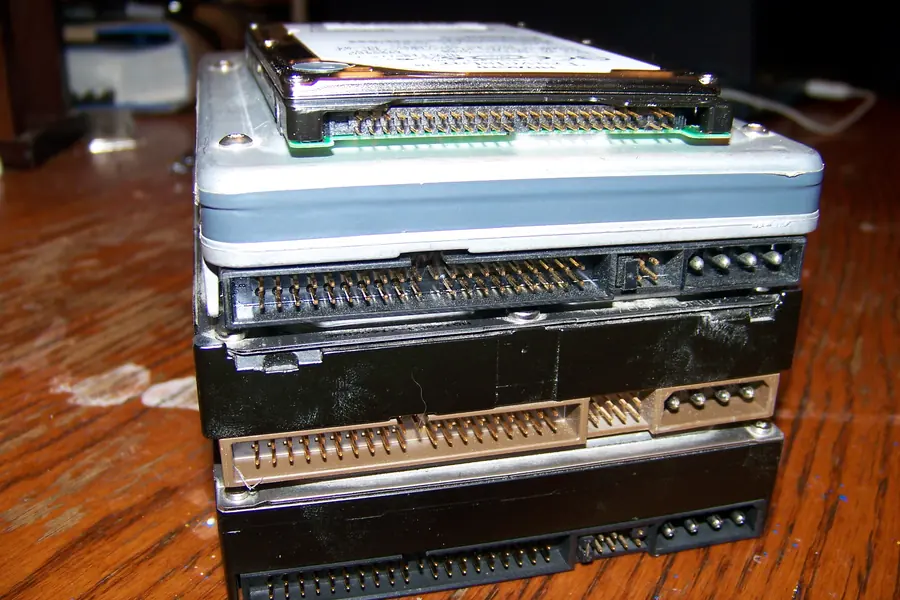
Hard drives from the same brand differ by where they belong. One series is built for a regular PC, another for non-stop running in a NAS, another for cameras. Pick the right series and the drive lasts for years. Grab the cheapest one and it often ends in data loss.
How brands name their series
The three biggest brands use three different systems:
- Western Digital (WD) separates series by colours (Blue, Red, Purple, …).
- Seagate uses names (BarraCuda, IronWolf, Exos, …).
- Toshiba uses a letter with a number (P300, N300, X300, …).
The principle is always the same: the more demanding the use, the more robust the drive and the higher its workload rating (how many terabytes per year the drive can handle writing and reading).
Western Digital by colour
- Blue - regular home and office PCs. Cheap, 5400 to 7200 rpm. Enough for the system, programs and data in a single computer.
- Green - the low-power, entry series. Today mostly a Green SSD without DRAM cache, fine for light builds.
- Black - performance for gamers and creators. This also covers fast NVMe SSDs (the SN line) when you want maximum speed.
- Red - drives for a NAS running 24/7. Watch out: plain Red can be SMR. For a NAS you want Red Plus (CMR technology), or the faster Red Pro.
- Purple - camera and surveillance systems (DVR/NVR). Built for the non-stop writing of several video streams at once.
- Gold - enterprise and datacentre. Highest reliability, high workload rating, 24/7 operation.
Seagate by name
- BarraCuda - regular PCs, the counterpart to WD Blue.
- FireCuda - performance and gaming. Fast NVMe SSDs, and formerly hybrid SSHDs.
- IronWolf and IronWolf Pro - drives for a NAS, the counterpart to Red Plus and Red Pro.
- SkyHawk and SkyHawk AI - surveillance cameras, the counterpart to WD Purple.
- Exos - enterprise and datacentre, the counterpart to WD Gold.
- Nytro - enterprise SSD.
Toshiba by letter
- P300 - regular PCs.
- N300 - drives for a NAS.
- S300 - surveillance cameras.
- X300 - performance.
- MG and MN - enterprise.
Table: use case and recommended series
| Use case | WD | Seagate | Toshiba |
|---|---|---|---|
| Home and office PC | Blue | BarraCuda | P300 |
| Performance and gaming | Black | FireCuda | X300 |
| NAS (24/7 operation) | Red Plus | IronWolf | N300 |
| Cameras and surveillance | Purple | SkyHawk | S300 |
| Server and datacentre | Gold | Exos | MG |
CMR versus SMR: the most important difference
This is the term that can trip you up the most. It is about how the drive stores data on its platters:
- CMR (conventional recording) - the tracks do not overlap. Stable, predictable performance.
- SMR (shingled recording) - the tracks partly overlap like shingles on a roof. The drive is cheaper and has higher capacity, but it slows down sharply on random or large writes.
An SMR drive is a problem mainly when a RAID array is rebuilt. The rebuild can take days, and in the worst case the drive cannot finish it. So the rule is simple: put only CMR drives in a NAS and in a RAID (Red Plus, IronWolf, N300 and similar), never a desktop or surveillance SMR drive.
What else sets the series apart
Beyond the use case, these parameters also matter:
- Workload rating - how many terabytes per year the drive can handle. NAS and enterprise series have a much higher one.
- MTBF and AFR - reliability figures, that is how often the drive fails on average.
- Vibration sensors - NAS and enterprise drives have them, because in a multi-bay box the drives shake each other. A regular drive loses both performance and lifespan there.
- Warranty - higher series tend to have a longer one (often 3 to 5 years).
Practical rules to close
- Buy the series by use case, not by the lowest price.
- Never put a desktop or surveillance SMR drive in a NAS. Choose Red Plus, IronWolf or N300.
- For cameras, use a series built for non-stop writing (Purple, SkyHawk, S300).
- A server and important data deserve an enterprise series (Gold, Exos, MG).
- Track drive health through SMART values so a failure on the horizon never catches you off guard.
If you are not sure which series fits your build, camera setup or NAS, we will help you pick and install it. Still torn between drive types? Read how to choose a drive.
We help you choose and install the right drive
We pick the right drive series for your NAS, camera system or server and take care of safe deployment. For households and businesses in Liptov alike.
Get in touchThis article is part of our Hardware and components overview.
This article is part of our Data backup and recovery overview.
Frequently asked questions
How do WD, Seagate and Toshiba label their drive series?
Which drive is best for a NAS?
What is the difference between a CMR and an SMR drive?
Why is an SMR drive unsuitable for a RAID array?
Which drive is suitable for a camera surveillance system?
What else should you consider besides use case when choosing a drive?
Need help with IT?
We will take care of your computers, networks and security - for businesses and households in the Liptov region.
Contact us