
What a docking station is and how to choose one
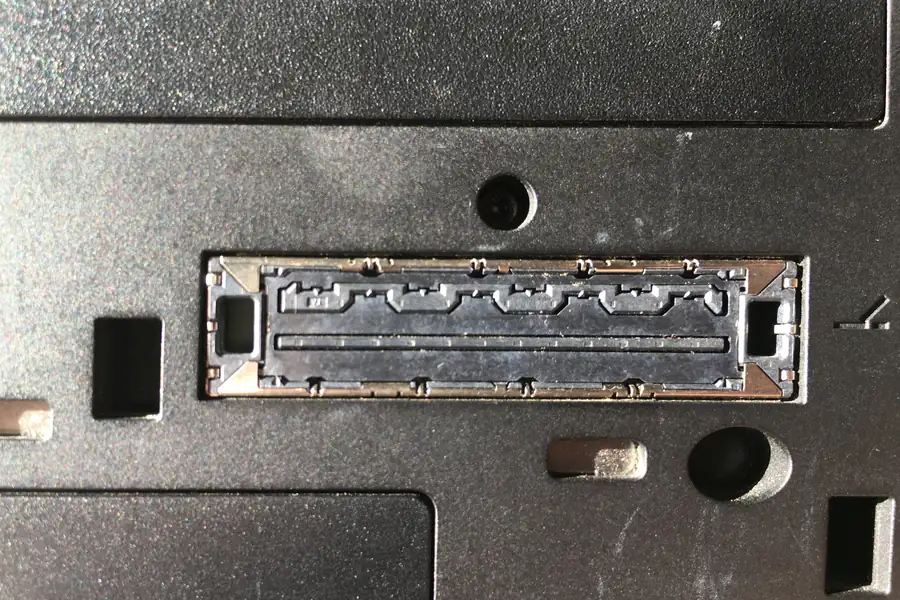
A docking station turns a laptop into a full workstation. One cable is enough to connect monitors, the network, a keyboard, a mouse and charging all at once. When choosing one, though, you need to watch the type, performance and compatibility. Let us explain what a dock does and how to choose the right one.
What a docking station is
A docking station expands a laptop’s ports. With a single connection (most often via USB-C or Thunderbolt) you connect everything else to it: monitors, ethernet, USB devices, sound and power. When you arrive at the desk with the laptop, you plug in one cable and the whole workplace is ready. When you leave, you pull out the cable in one move and the laptop is free.
Types of docking stations
- A USB-C dock connects via an ordinary USB-C port with picture support (DisplayPort Alt Mode). It is affordable and plenty for a single monitor and ordinary ports.
- A Thunderbolt dock is the most powerful. It handles several monitors at high resolution and higher throughput, but is more expensive and requires a laptop with a Thunderbolt port.
- A USB dock with DisplayLink technology carries the picture in software through a driver. It works with almost any laptop including older ones, but the picture is a little less smooth.
- Branded (proprietary) docks are made directly for a given laptop line and fit them exactly, but are not universal.
What to look at when choosing
- How many and what monitors you want to connect. The number of monitors and their resolution or refresh depends on the type of dock and the laptop. For two 4K monitors at 60 Hz you often need Thunderbolt.
- Charging power (Power Delivery). If you want to charge the laptop through the dock too, check that the dock provides enough watts for your model.
- Ports. Check the number of USB, ethernet, a card reader, sound, depending on what you connect.
- Compatibility. You will use a Thunderbolt dock fully only with a Thunderbolt laptop. A USB-C dock works more widely, but with limitations.
Watch out for the limits of USB-C docks
An ordinary USB-C port has limited throughput, shared between picture and data. So with cheaper USB-C docks there may be a problem running two 4K monitors at 60 Hz at once, or picture and fast data at the same time. Here either a Thunderbolt dock or a DisplayLink dock helps. We also explain the differences between USB-C and Thunderbolt in the article on USB connectors.
Which to buy
- One monitor, USB and ethernet: a quality USB-C dock is enough.
- Two 4K monitors and higher performance: a Thunderbolt dock.
- An older laptop or more monitors at a reasonable price: a DisplayLink dock.
- Charging the laptop with one cable: a dock with enough Power Delivery.
Not sure which dock fits your laptop and monitors? Get in touch, we will advise based on what you connect, and also help with choosing a monitor or a laptop.
We help choose the right docking station
We will advise which dock fits your laptop and monitors, and set it up for you. For homes and businesses across Liptov.
Choose a docking stationThis article is part of our Hardware and components overview.
Frequently asked questions
What is the difference between a USB-C and a Thunderbolt docking station?
Can a docking station charge a laptop?
How many monitors can a typical docking station handle?
Is a docking station the same as a USB hub?
Does a docking station work with every laptop?
What is DisplayLink and when is it worth it?
Need help with IT?
We will take care of your computers, networks and security - for businesses and households in the Liptov region.
Contact us