
DRAM cache in an SSD: the tiny chip that decides your drive's speed
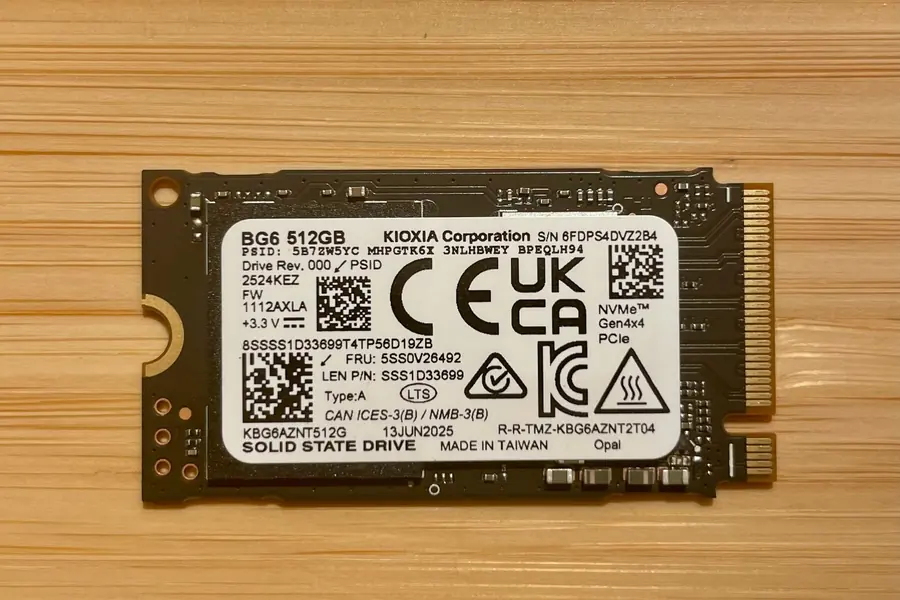
You buy two SSDs with almost identical numbers on the box, yet one is noticeably slower in real use. It is not a fault or bad luck. Very often it comes down to a single part the box never mentions: the DRAM cache.
What an SSD is made of
Every SSD has three main parts:
- Controller - the brain of the drive that handles writing and reading.
- NAND memory - this is where your actual data lives.
- DRAM cache - a small fast memory that only some drives have.
The key point is that the DRAM cache does not store your data. It holds the mapping table (technically the FTL or L2P), a list of where each logical block physically sits in the NAND. When the system looks for something on the drive, the controller checks this table first. If it lives in fast DRAM, the data is found instantly.
What a DRAM-less SSD is
DRAM-less SSDs are drives without their own DRAM cache. They are cheaper because the maker saves on one part. The mapping table then has to live somewhere else:
- either directly in the slower NAND memory,
- or it borrows part of the computer’s system RAM through a technology called HMB (Host Memory Buffer) over the NVMe bus.
Both approaches work, but neither is as fast as having dedicated DRAM right on the drive.
How it shows up in speed
Here is the key difference from the advertising. Sequential speeds (the big numbers on the box, such as “7000 MB/s”) tend to be similar on both DRAM and DRAM-less drives. The difference shows up elsewhere:
- during random access under load (many small operations at once),
- when copying many small files,
- and especially when the drive fills up with data.
In these situations a DRAM-less drive slows down sharply and has higher latency (response delay). For light use (booting, web, office work) a DRAM-less drive is perfectly fine. For heavy load, lots of writes and professional work (video editing, virtual machines, development) you want a drive with DRAM.
Careful, SLC cache is something else
On cheap drives you will often run into the term SLC cache (a pseudo-SLC write buffer). This is not the same as DRAM. SLC cache is a reserved part of the NAND that absorbs the first writes very quickly. The problem comes with a large continuous write: once the SLC cache fills up, speed drops, sometimes to a fraction of the original value.
A typical budget drive today combines two things at once: QLC NAND (a cheaper memory type) without DRAM. It is exactly this kind of drive that slows down the most during a bigger write. For more on reading drive specs, see the article How to choose a disk.
Why makers do not mention it
Leaving out DRAM is an easy place to cut costs. On the box the maker only boasts about the sequential numbers, which are similar on both DRAM and DRAM-less drives. The difference hides in the very figures that are never advertised:
- random performance,
- performance on a full drive,
- behaviour under longer load.
In other words, on paper both drives look equally good. In real use they are not.
How to find out if a drive has DRAM
You can check a specific drive, it just takes a little digging:
- The maker’s official datasheet - it sometimes states the presence of DRAM directly.
- Independent reviews and teardowns - these physically open the drive and photograph the chips.
- Community SSD databases - people gather the specs of specific models there.
A good clue: if the specification mentions HMB (Host Memory Buffer), the drive is almost certainly DRAM-less. Look explicitly for a “DRAM cache” yes or no. If you plan to use the drive as your system disk, also read why it pays to switch from HDD to SSD, and how drive performance relates to virtual memory and the page file.
Summary
- DRAM cache holds the mapping table, not your data, but it speeds up access significantly.
- DRAM-less drives are cheaper and fine for everyday use.
- For heavy load, lots of writes and full drives you want a drive with DRAM.
- The sequential numbers on the box tell you nothing about this, random performance and behaviour on a full drive are what matter.
- SLC cache is a different thing and only handles the first fast writes.
Not sure which SSD is right for your computer? We will advise you based on how you actually use your machine and pick a drive that will not let you down even under load. Get in touch.
We help you choose the right SSD
We pick a drive based on how you actually use your computer, not the numbers on the box. For homes and businesses across Liptov.
Choose an SSDThis article is part of our Hardware and components overview.
Frequently asked questions
What exactly does the DRAM cache do in an SSD?
Is a DRAM-less SSD a bad choice?
What is HMB (Host Memory Buffer)?
Is SLC cache the same as DRAM cache?
How do I find out if my SSD has a DRAM cache?
Why can you not compare sequential speeds from the box blindly?
Need help with IT?
We will take care of your computers, networks and security - for businesses and households in the Liptov region.
Contact us