
Two emails from “Apple” on the same day: one real, one scam. How to tell them apart
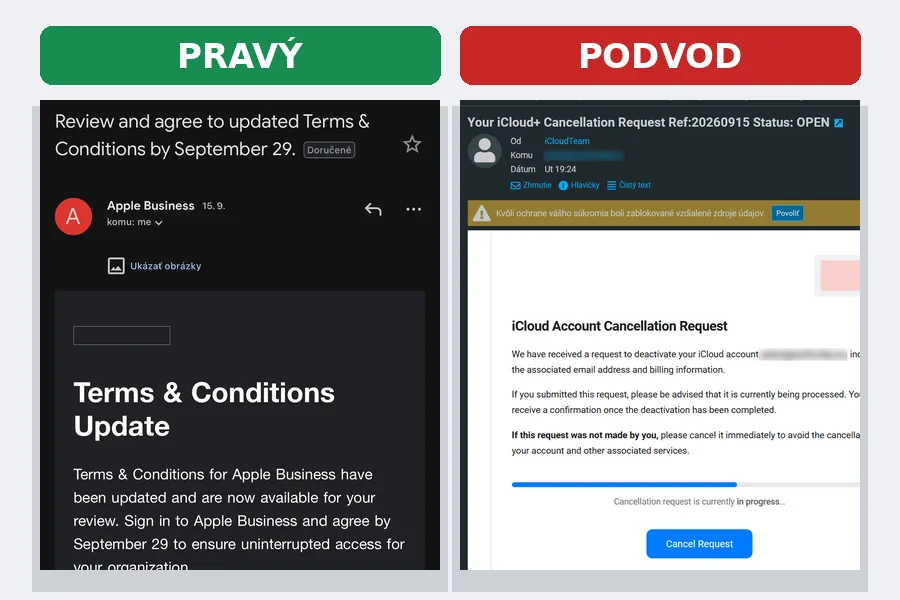
Photo: tiptech.sk (real emails from 15 September 2026)
On 15 September, two emails arrived in one of our mailboxes, both in Apple’s name. One asked us to accept the new Apple Business Manager terms. The other announced that a request to cancel our iCloud account was being processed and offered a button to stop it. One was genuine, the other was a scam. Using this real case, we will show how to tell them apart reliably, even though both look professional at first glance.
Email number 1: new Apple Business Manager terms
The subject line read “Review and agree to updated Terms & Conditions by September 29”. The text explained what had changed in the terms and pointed to signing in to Apple Business Manager. No threats, no password request, just information and a deadline.
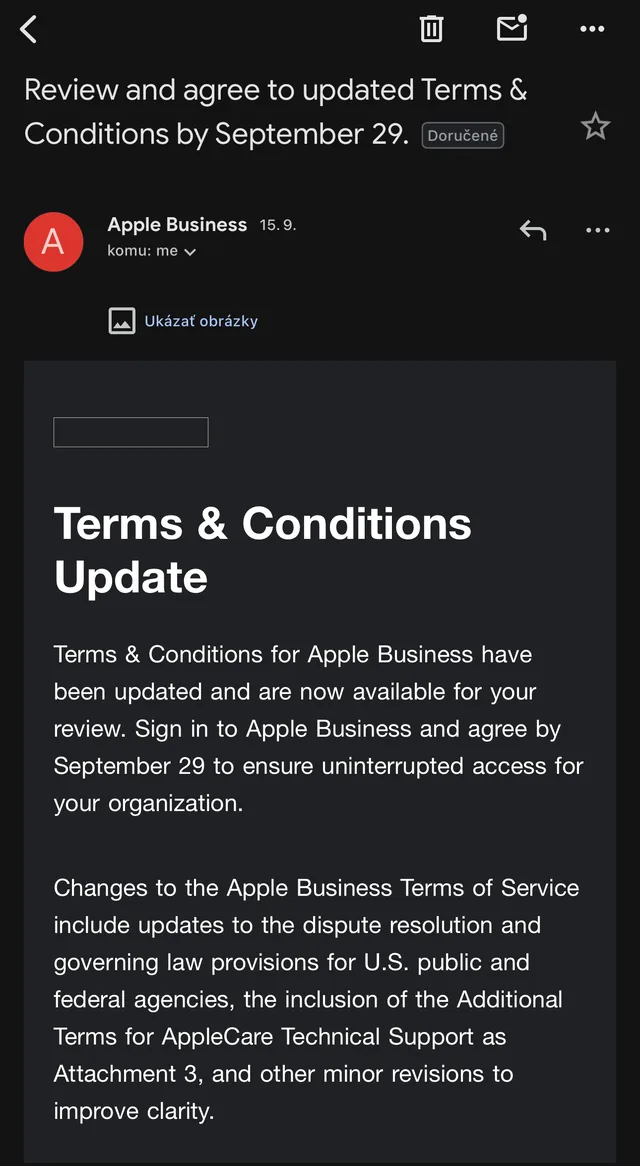
What we checked:
- Sender address:
no_reply@insideapple.apple.com. The domain after the @ sign ends in apple.com, Apple’s real domain. - Sending server check (SPF): passed, and the message came from an IP address belonging to Apple (the 17.0.0.0/8 range has belonged to Apple for decades).
- Links in the message: all of them led to
business.apple.com,support.apple.comandapple.com. No tracking links, no foreign domains. - Content: specific and factual, describing changes to the attachments of the terms and linking to a support article. It asks for nothing, it only informs.
Verdict: genuine. Apple Business Manager really did update its terms in September 2026 and administrators must accept them by 29 September, otherwise the organisation loses access to the service.
Email number 2: “iCloud cancellation request”
Subject: “Your iCloud+ Cancellation Request Ref:20260915 Status: OPEN”. The message claimed Apple had received a request to deactivate the iCloud account, including the email address and billing information. If you did not submit it, you should “cancel it immediately” with the Cancel Request button. Below the text there was even a progress bar labelled “Cancellation request is currently in progress”.
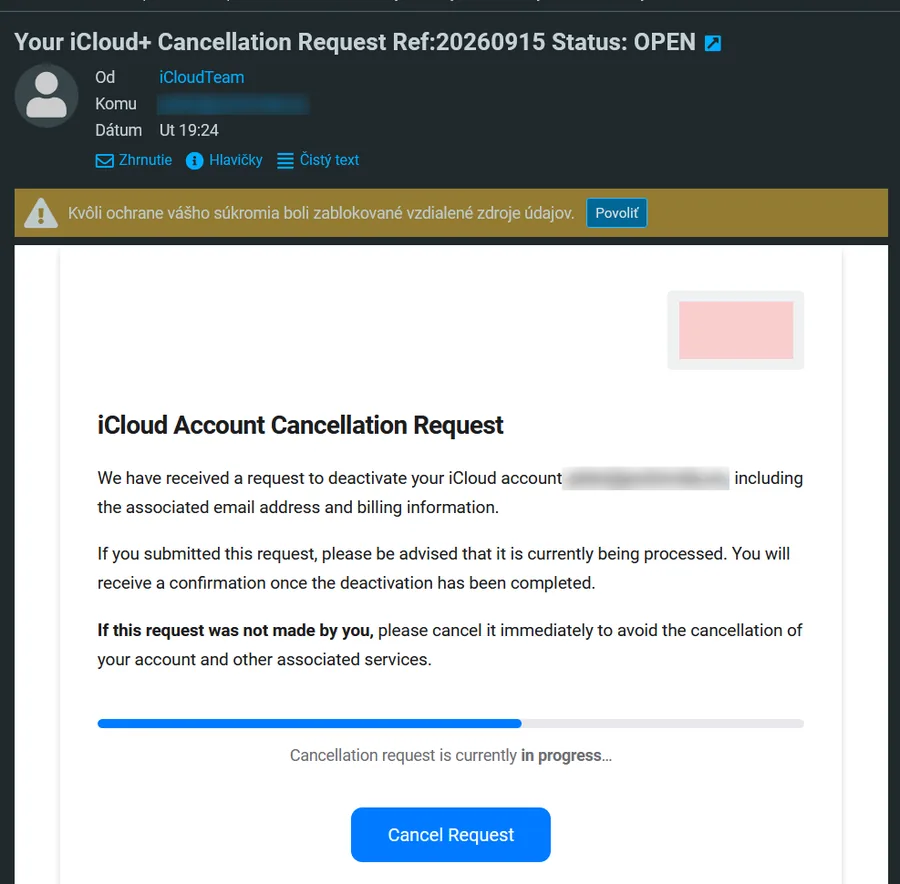
At first glance it looks credible. It has a logo, a footer with the Apple Park address, links to Apple ID and support. On closer inspection it falls apart:
- Sender address: the display name is “iCloudTeam”, but the real address is
storagebackupnotificationsystem@fotografica.nl. A Dutch photography company’s domain has nothing to do with Apple. This is the clearest sign of a scam. - SPF and DKIM both passed. This surprises many people. They passed because the message really was sent from a Google Workspace server that the domain fotografica.nl has authorised. The scammer most likely gained access to that company’s account and is sending scams from it. SPF and DKIM confirm that the domain fotografica.nl sent the message. They do not confirm that Apple sent it.
- The Cancel Request button did not lead to apple.com. The link went through the tracking service
track.pstmrk.itand then through a redirect on another company’s domain. This chaining is meant to hide the real destination from filters. When we checked the link in an isolated environment, the destination had already been taken down; phishing pages often live only a few hours. - The other footer links (Apple ID, iCloud Support, Terms and Conditions) led nowhere. They were empty links for decoration.
- Copyright © 2022 Apple Inc. in the footer of a message from 2026. Someone copied the template years ago and never updated it.
- A nonsensical scenario. An iCloud account cannot be cancelled by a “request” that you would stop with one click in an email. Apple sends nothing of the kind.
- Impersonal greeting and time pressure. The message contains no name, only an email address, and urges you to act “immediately”.
Verdict: phishing. Clicking the button would lead to a fake Apple sign-in page, and after entering the Apple ID and password the attacker would have access to photos, backups, contacts and often payment details and Find My as well.
Quick comparison
| Sign | Genuine email | Scam |
|---|---|---|
| Sender | no_reply@insideapple.apple.com | storagebackupnotificationsystem@fotografica.nl |
| Domain | apple.com | fotografica.nl |
| SPF/DKIM | passed, Apple server | passed, but for a foreign domain |
| Links | business.apple.com, support.apple.com | tracking link and redirect through foreign domains |
| Tone | informs, gives a two-week deadline | threatens, demands immediate action |
| Greeting | organisation, specific context | no name, just an address |
| Footer | current Apple links | empty links, year 2022 |
Why passing SPF and DKIM is not enough
This is the key lesson of this case. Many guides say “check whether SPF and DKIM passed”. That is correct, but only as a first step. These checks tell you whether the message was sent by a server the sender’s domain has authorised. If the scammer writes from a stolen company account or from their own domain, the checks pass without any problem.
So always ask: which domain did the message come from, and is it the domain of the company that is addressing me? Apple writes only from domains ending in apple.com. A bank writes from the bank’s domain. If the display name and the domain do not match, the message is a scam regardless of what SPF and DKIM say.
How to verify an email yourself, step by step
- Open the full sender address. In Gmail tap the sender’s name, in Outlook and Apple Mail tap the name or the arrow next to it. Look at the domain after the @ sign, not the name before it.
- Reveal the link target without clicking. On a computer, hover over the button and the address appears in the corner of the browser or mail client. On an iPhone or iPad, press and hold the button.
- Check the headers. In Gmail use “Show original”, in Outlook “View message source”. Look for the Received-SPF, DKIM-Signature and Return-Path lines and the domain in them.
- Verify the scenario outside the email. Worried something is happening to your account? Type
appleid.apple.cominto your browser manually or open Settings on your device. Never go through the link in the message. - Use our tool. You can paste the whole message source into our phishing email checker, which runs only in your browser and flags the typical signs of phishing.
A detailed guide with pictures is in our article how to verify a suspicious email.
What to do if you already clicked
- You entered nothing: close the page, mark the message as spam and delete it. Nothing happened.
- You entered your Apple ID and password: change the password immediately at
appleid.apple.comor in Settings, sign out every device you do not recognise in the device list, and turn on two-factor authentication. If you use the same password elsewhere, change it there too. - You entered a payment card: call your bank and block the card, watch your account activity.
- Report it to Apple: forward the message as an attachment to
reportphishing@apple.com.
What about the genuine email
If you manage a company’s or school’s devices through Apple Business Manager or Apple School Manager, respond to the request for the new terms. Not through the button in the message, but by signing in at business.apple.com, typed manually. If Apple really requires consent, the prompt appears right after signing in. After the deadline without consent, the organisation loses access to device management and licence purchasing.
This is the best rule for every message that asks you to do something: respond to the request, but by a route you choose yourself, not through a link someone sent you.
More about similar attacks in our articles phishing and scam emails, social engineering and AI scams and what to do when your account is hacked.
Conclusion
Two emails in Apple’s name, the same day, the same professional look. The difference was in the details: the sender’s domain, where the links lead and whether the message informs or threatens. The genuine email came from apple.com and linked to apple.com. The scam came from a foreign domain, passed the technical checks and used a button to push you to a fake page. Check the domain, check the link and, when in doubt, sign in manually. These three steps stop most phishing.
Received a suspicious email or already clicked?
We will verify the message, secure your accounts and devices and set up email protection for your home or business. In person in Liptov, remotely elsewhere.
I want helpThis article is part of our Cyber security overview.
Comments and questions 0
We keep the discussion to the point. Ads, links to other services, profanity and personal attacks will not be published. Neither will posts containing other people's personal data.
Frequently asked questions
Does Apple send an email about an iCloud account cancellation with a button to stop it?
How do I find out who really sent an email that says Apple?
What are SPF and DKIM and why did the scam email pass them?
Where does the link in the scam email lead and how do I check without clicking?
I clicked Cancel Request and entered my Apple ID password. What now?
How do I verify that an Apple Business Manager request to accept new terms is genuine?
Need help with IT?
We will take care of your computers, networks and security - for businesses and households in the Liptov region.
Contact us