
HDMI and DisplayPort: versions and which cable to buy
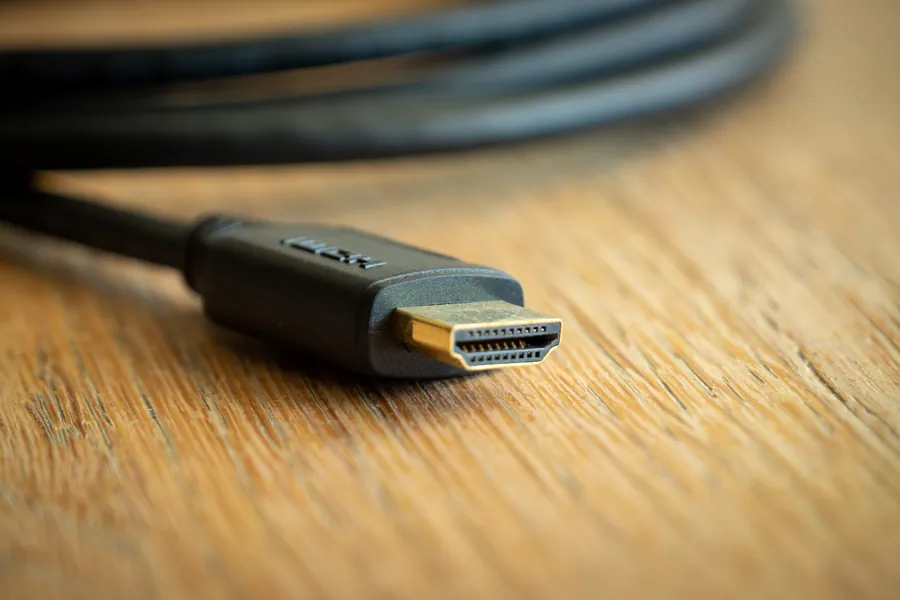
HDMI and DisplayPort are the two most common connectors for carrying a picture, yet it is easy to get lost in their versions. What can HDMI 2.0 do, and what can 2.1? When is DisplayPort better? And which cable should you really buy to get 4K and a high refresh rate from your monitor? Let us sort it out.
What HDMI and DisplayPort are for
Both connectors carry picture and sound digitally over a single cable. In practice they differ mainly in where they are used:
- HDMI is everywhere a picture is meant for an ordinary viewer: televisions, game consoles, projectors, set-top boxes, soundbars.
- DisplayPort lives mainly on computers and computer monitors, where its higher performance and features for gamers and multiple monitors come in handy.
Neither is universally better. What matters is what you connect and where.
HDMI versions and what they can do
The HDMI connector looks the same from the outside, but its version determines what resolution and refresh rate (Hz) it carries:
- HDMI 1.4 handles 4K at 30 Hz or Full HD more smoothly. Today it is the bare minimum.
- HDMI 2.0 carries 4K at 60 Hz, which is enough for everyday work, films and light gaming.
- HDMI 2.1 is a big leap: 4K at 120 Hz, even 8K, plus gamer features like variable refresh rate (VRR) and better sound over eARC. This is the version for the PlayStation 5, Xbox Series and modern gaming televisions.
DisplayPort versions
DisplayPort goes a bit further in specifications and is favored by gamers:
- DisplayPort 1.2 carries 4K at 60 Hz and can drive several monitors from one port (the MST feature).
- DisplayPort 1.4 handles 4K at 120 Hz and 8K, supports HDR and is today a common standard on gaming monitors.
- DisplayPort 2.0 and 2.1 raise the bar even higher for 8K and multiple high-refresh monitors.
DisplayPort also works smoothly with smooth-picture technologies (FreeSync and G-Sync) that gamers appreciate.
HDMI or DisplayPort: which and when
- Television, console, soundbar, projector: clearly HDMI, or HDMI 2.1 for 4K at 120 Hz.
- Computer monitor, PC gaming, high refresh rate, multiple monitors: rather DisplayPort.
- If both your graphics card and monitor have both, simply use the one that delivers the resolution and Hz you need.
Watch out, same as with USB: the cable and the version
Just as with USB, the connector is the same across versions, but the version of the device and the cable decides. A cheap HDMI cable may not carry 4K at 120 Hz even if you plug it into an HDMI 2.1 port. For higher resolutions, reach for certified cables (with HDMI look for the Ultra High Speed marking, with DisplayPort the VESA certification). And the rule holds that the higher the speed, the shorter a reliable cable tends to be.
An optical HDMI cable for long distances
An ordinary copper HDMI cable works reliably at high resolutions only up to a few meters. If you need to run a 4K picture over 10, 20 or more meters, for example to a projector on the ceiling, reach for an optical HDMI cable (AOC). Inside it carries the signal as light through an optical fiber, so it keeps high resolution even over tens of meters without losing quality. Note that optical HDMI cables tend to be one-directional, so you must observe the marked ends for the source and for the screen.
Adapters and converters
HDMI and DisplayPort can be connected to each other with a converter, but the direction and type matter, so for higher resolutions prefer an active adapter. A chapter of its own is USB-C, which can carry a picture directly through the so-called DisplayPort Alt Mode, so you connect a monitor to a laptop with a single thin cable. You can read more about USB-C in the article on USB connectors.
Which to buy: practical recommendations
- Everyday work and Full HD: any newer HDMI or DisplayPort cable is enough.
- A 4K monitor at 60 Hz: HDMI 2.0 or DisplayPort 1.2 and higher.
- A gaming monitor at 144 Hz or 4K at 120 Hz: DisplayPort 1.4, or HDMI 2.1.
- A 4K TV at 120 Hz, a PS5 or Xbox Series: HDMI 2.1 and an Ultra High Speed cable.
Not sure which cable to buy for your setup?
We will advise on the right HDMI or DisplayPort cable, monitor and graphics card, then connect and set everything up. For homes and businesses in the Liptov region.
Get adviceThis article is part of our Hardware and components overview.
Frequently asked questions
What is the difference between HDMI and DisplayPort?
What can HDMI 2.1 do?
Which cable do I need for a 4K monitor at 60 Hz?
Which cable is better for a gaming monitor?
Why does a cheap HDMI cable fail to carry 4K at 120 Hz?
How do I carry a 4K picture over 10 or more meters?
Need help with IT?
We will take care of your computers, networks and security - for businesses and households in the Liptov region.
Contact us