
How to create a local account in Windows 10 and Windows 11
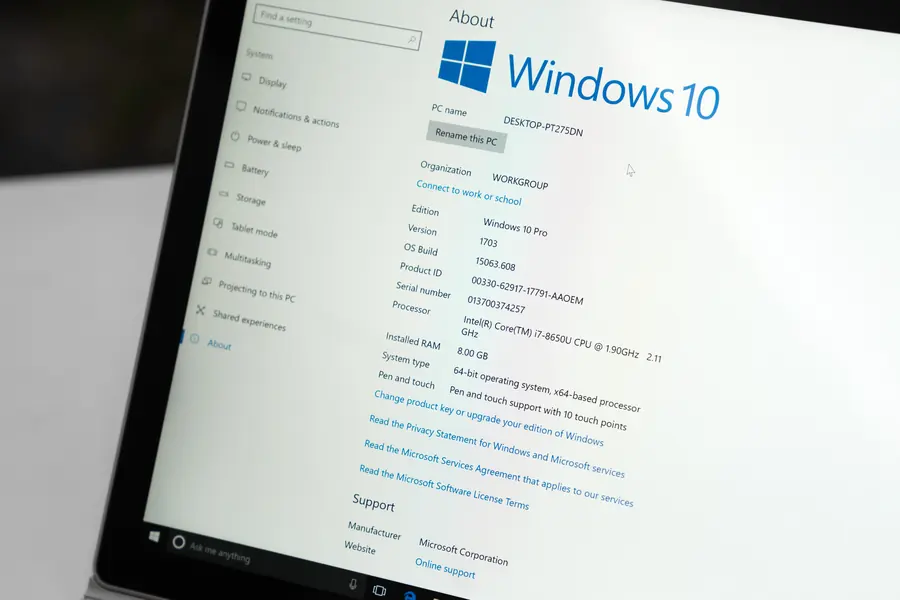
During installation, Windows increasingly pushes you to sign in with a Microsoft account, yet many people prefer a plain local account without an online sign-in. It can be done, each version just has its own way. Let us show how, in both Windows 10 and 11.
Why a local account
A local account is an account that exists only on that computer and needs no Microsoft account or internet. It suits when you want more privacy, a simpler sign-in, a computer without an online tie, or a device that runs offline. For many companies and older users it is clearer.
Windows 10: going offline
In Windows 10 it is simple. During the initial setup (the so-called OOBE), disconnect from the internet, that is unplug the network cable and do not connect to wifi. When Windows has no internet, it offers creating an offline (local) account on its own. If you are already connected, look during setup for the “offline account” or “limited options” choice at the bottom left.
Windows 11: the bypassnro trick
Windows 11 is stricter and in its home editions requires both the internet and a Microsoft account. But a simple trick helps:
- On the screen where Windows asks to connect to a network, press Shift + F10. A command prompt opens.
- Type
OOBE\BYPASSNROand press Enter. - The computer restarts and returns to setup.
- Now choose “I don’t have internet” and then “Continue with limited setup”.
- Windows lets you create a local account.
In the newest versions of Windows 11, Microsoft has in places removed this command. In that case, in the command prompt (Shift + F10) try typing start ms-cxh:localonly instead, which opens local account creation directly.
What to watch out for
Some features are easier with a Microsoft account, for example syncing settings, restoring through the Microsoft Store, or automatically backing up the recovery key for disk encryption (BitLocker). If you use a local account and have encryption on, save the recovery key yourself to a safe place.
An existing system
You can switch later too. If you already have Windows with a Microsoft account, in Settings, Accounts choose to sign in with a local account instead. The reverse works the same way.
Do you need help with installing or setting up Windows? Get in touch, we will set it up for you. We also write about moving between versions in the article Windows 10 has ended.
This article is part of our Software and system overview.
Frequently asked questions
How do I create a local account in Windows 10?
How do I get a local account in Windows 11?
What if the bypassnro command does not work?
What are the pros and cons of a local account?
Can I switch to a local account on an installed system?
Does a local account need a password set?
Need help with IT?
We will take care of your computers, networks and security - for businesses and households in the Liptov region.
Contact us