
Watch out for the difference between M.2 SATA and M.2 NVMe (it is dramatic)
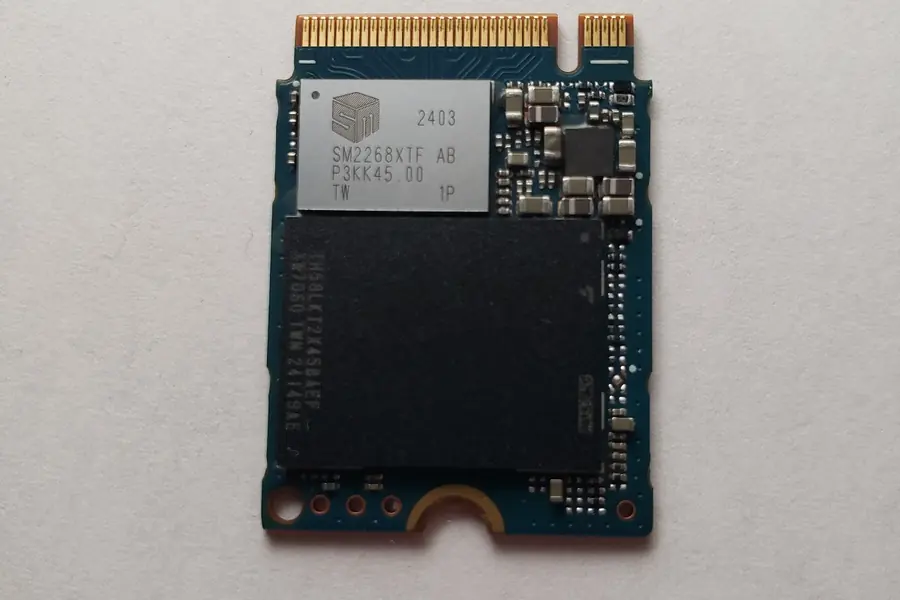
Two small sticks that look almost identical, yet one is slow and the other extremely fast. The difference between M.2 SATA and M.2 NVMe can surprise even an experienced buyer. And this is exactly where many people get caught out today.
Same shape, completely different speed
M.2 is just a connector, meaning the shape and the way a drive slots into the motherboard. It says nothing about how fast the drive talks to the rest of the computer. That is handled by the so-called interface (the bus the data flows through).
This is where the paths split. The same M.2 stick can use either the old SATA interface or the modern NVMe (PCIe) one. Most people cannot tell them apart visually, yet in performance they are worlds apart.
M.2 SATA: an ordinary SSD in stick form
An M.2 SATA drive uses the same old bus as a classic 2.5-inch SSD. That means a ceiling somewhere around 550 MB/s (megabytes per second). It is essentially a regular SATA SSD, just in a different shape. Nothing more, nothing less.
That does not make it bad. Compared to an old spinning hard drive (HDD) it is still a huge leap and the system will fly on it. But if you paid for “M.2”, you probably expected much more.
M.2 NVMe: this is where it changes
An NVMe drive communicates over the fast PCIe interface and the speeds are on a completely different level:
- PCIe 3.0 (4 lanes): around 3,500 MB/s
- PCIe 4.0: around 7,000 MB/s
- PCIe 5.0: up to around 14,000 MB/s
In other words, even the slowest NVMe is roughly 6 times faster than M.2 SATA. Top models are 12 times faster or more. That is not a difference you would overlook.
The most common buying trap
And now the important part. Cheap listings and packaging often say only “M.2 SSD”. The buyer automatically assumes they are getting a fast NVMe, but in reality they receive a slow M.2 SATA.
The price difference is usually small. The performance difference is enormous. The very same computer then feels snappier or lazier depending on which drive ended up inside. So whenever something is unclear, it always pays to ask and verify rather than guess. If you are unsure, get in touch and we will help you pick and fit the right drive.
How to reliably tell what you are buying
There are several clues, but only one can be relied on for certain:
- The notches (key): two notches (B+M) on the connector are often SATA, a single notch (M) is usually NVMe. CAUTION, this is not a guarantee, only a hint. More on this in the article M.2 keys B and M.
- The drive label: sometimes it says SATA or NVMe right on it.
- The datasheet: this is the sure thing. Look for the words “NVMe” and “PCIe” (fast) or “SATA” (slow). Whatever the datasheet says is what counts.
The motherboard matters just as much. Some M.2 slots support only SATA, others only NVMe, and some both. Even a fast NVMe drive in the wrong slot may not work or may run slowly. So before buying, check what your board can handle too.
When the difference really matters
For everyday office work (web, e-mail, documents) even M.2 SATA is enough and you will barely feel the difference compared to NVMe. But the moment things get more demanding, NVMe shows its strength:
- System startup and opening programs: with NVMe everything is noticeably snappier.
- Games and large applications: faster loading, shorter waiting.
- Transferring large files: here the difference is striking.
On top of that, modern technologies like fast game loading (DirectStorage) draw precisely on NVMe, and an M.2 SATA drive gains nothing from them.
Conclusion
M.2 is not always the same M.2. The shape is identical, but there is a chasm between slow SATA and fast NVMe. If you are paying for a drive as if it were modern, you want to be sure it really is. Always verify the interface in the datasheet and check what your board supports.
If you are thinking about an upgrade, also read whether it is worth switching to an SSD and how to choose a drive based on what you need it for.
Not sure what drive you have or need?
We will check the drive's interface and compatibility with your motherboard and replace it if needed. For homes and businesses in the Liptov region.
Check my driveThis article is part of our Hardware and components overview.
Frequently asked questions
What is the difference between M.2 SATA and M.2 NVMe?
How can I tell whether I have an M.2 SATA or NVMe drive?
Does every motherboard support an M.2 NVMe drive?
Is an M.2 SATA drive worth it, or should I buy NVMe right away?
Why do sellers often list just M.2 SSD without specifying?
What is DirectStorage and how does it relate to NVMe drives?
Need help with IT?
We will take care of your computers, networks and security - for businesses and households in the Liptov region.
Contact us