
Devices keep disappearing from your network? A misconfigured DHCP server may be to blame
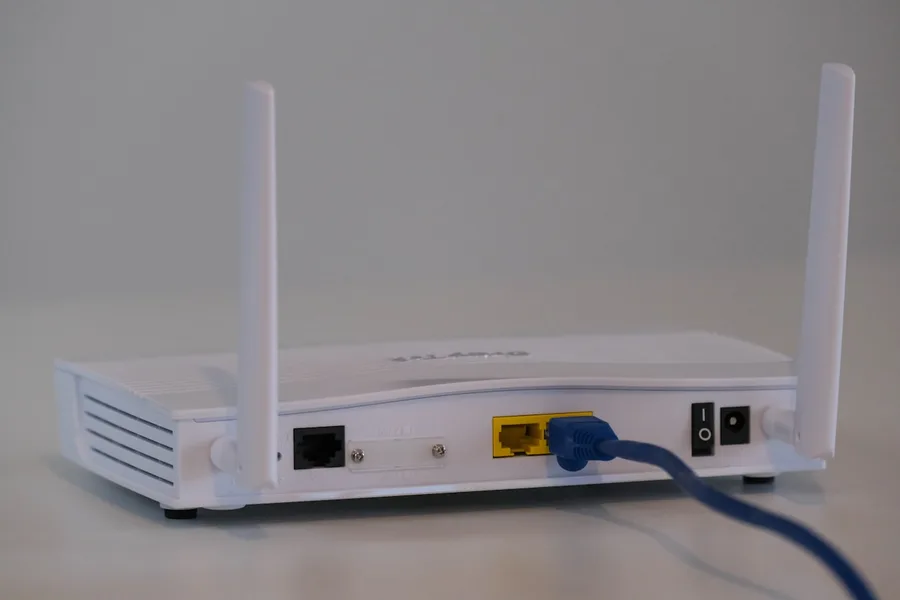
You know the scene: the printer that “worked yesterday” is offline today. The camera vanished from the app. The network drive will not connect, and only a router reboot helps - until the next time. If this keeps happening, the culprit is most likely not faulty hardware but address assignment in the network - DHCP.
What DHCP is and why the whole network depends on it
Every device in a network needs an IP address - the equivalent of a postal address where others can find it. So that you do not have to set addresses by hand, a DHCP server (Dynamic Host Configuration Protocol) does it: a device connects, the server assigns it a free address, a gateway and DNS, and everything just works. How IP address, mask and gateway fit together is explained in our networking basics.
One important detail: the address is not assigned forever but for a certain time - the lease. When it expires, the device renews it, or the server assigns it to someone else. And this is exactly where the trouble starts when DHCP is set up badly.
Five typical mistakes that make devices “disappear”
1. Manual addresses in the middle of the assigned range. The most common case. Someone once manually gave the printer an address, say .150 - but it lies inside the range DHCP hands out to others. Sooner or later the server assigns .150 to another device and an IP conflict is born: two devices with the same address keep shouting over each other. The printer works on and off, depending on who currently “holds the chair”.
2. Two DHCP servers in one network. A classic in homes and small businesses: someone connects their own router to the ISP router without switching it to access point mode. Suddenly two servers hand out addresses - each different, with a different gateway. Some devices end up in one network, some in the other, and they cannot see each other. The camera “disappears” although it runs fine.
3. An exhausted address range. The server has, say, 50 addresses to hand out. That used to be enough, but meanwhile phones, watches, cameras, light bulbs and wifi guests have piled up. When the range runs dry, a new device simply gets no address - and the user sees “connected, no internet”. Who is actually hanging on your network is covered in who is connected to my wifi.
4. An unsuitable lease time. Too short a lease (a few minutes) means devices constantly renew their addresses - and the more sensitive ones occasionally drop out doing so. Too long a lease combined with a small range keeps addresses held by “dead” devices that left long ago, leaving nothing for new ones.
5. Changing the range without thinking it through. A router swap changes the network range (say from 192.168.1.x to 192.168.0.x) - and everything with manually set addresses stays in the old world: printers, cameras, the NAS. It all runs, but nobody can find it.
Why this is so hard to track down
The nastiness of these faults is that they are intermittent. An IP conflict shows only when both devices are on at once. An exhausted range only when guests arrive. And a router reboot “fixes” everything for a while because addresses are handed out anew - so nothing ever gets properly solved and a company lives with rebooting for years.
At a single glance the network looks healthy. Diagnosis requires looking at it as a whole: which ranges are assigned, who assigns them, which devices have manual addresses and whether they overlap. We have met exactly this case in practice - two devices in a client’s network had been fighting over one address for years, and the “mysterious” outages disappeared only after readdressing the entire network.
What a correct setup looks like
The recipe is not complicated; it just has to be followed completely:
- One DHCP server per network. Switch all other routers and access points to AP/bridge mode.
- Reservations instead of manual addresses. Printers, cameras, storage and other permanent devices get a DHCP reservation: the server assigns them the same address based on their MAC address. Everything is recorded in one place and no conflict can occur.
- A range with headroom. Count every phone, watch and light bulb - and the guests.
- A sensible lease time. In a normal network, hours to a day works well, not minutes.
- Documentation. At least a simple table: what, which address, why. You will thank yourself in a year.
- In a business, additionally network separation - guests and IoT devices have no business seeing the accounting. See our article on VLANs.
Why it is better left to a professional
Anyone can set up DHCP “somehow” - the problem is setting it up so that it fits the rest of the network: manual addresses from the past, the second router nobody knows about, the cameras from a supplier who also “set something up”. It is precisely these leftovers that keep the problems alive even after new hardware.
A professional goes through the whole network: maps the devices, uncovers duplicate DHCP servers and conflicts, unifies the assignment, sets reservations and leaves documentation behind. You will not recognise the difference by “it works today” - but by the router reboot no longer being part of the workflow. And not every technician is the same: ask what will remain documented after the job.
Conclusion
Disappearing printers, cameras and drives are almost never a hardware fault - behind them is address assignment: conflicts, two DHCP servers, an exhausted range or manual addresses from the past. These are intermittent, hard-to-catch faults that a reboot merely postpones. The fix is one DHCP server, reservations for permanent devices and order in the ranges - once and for good.
Rebooting the router more often than you would like?
We will go through your network, find the conflicts and set up address assignment so devices stop disappearing. For households and companies in the Liptov region.
Get in touchThis article is part of the computer networks overview.
Comments and questions 0
We keep the discussion to the point. Ads, links to other services, profanity and personal attacks will not be published. Neither will posts containing other people's personal data.
Frequently asked questions
What is a DHCP server and what does it do?
Why does a printer or camera occasionally disappear from the network?
What is an IP conflict and how does it show?
How do I find out I have two DHCP servers in the network?
What is a DHCP reservation and why is it better than a manual static address?
When is it worth calling a professional to set up the network?
Need help with IT?
We will take care of your computers, networks and security - for businesses and households in the Liptov region.
Contact us