
The blue screen (BSOD): what it means and what to do
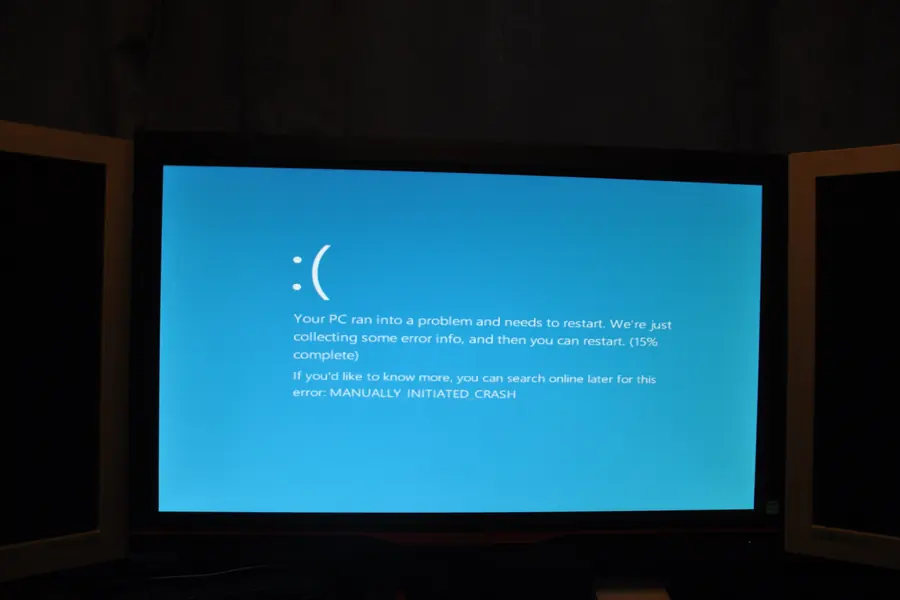
The computer suddenly goes dark, a blue screen with text and a code appears, and the machine restarts. It scares many people, but it is not always a catastrophe. Let us explain what the blue screen means, why it happens and what to do about it.
What the blue screen is
The blue screen (the Blue Screen of Death, BSOD) means that Windows hit a serious error and chose to stop so as not to damage the system or data. It shows an error code and the computer usually restarts. It is actually a safety fuse, not the fault itself.
The most common causes
- Drivers, especially of the graphics card, are the most common reason.
- Hardware, for example faulty memory, a failing disk or overheating.
- Updates to the system or drivers that did not get along.
- A damaged system or a virus.
What to do immediately
First write down the error code (the so-called stop code), or photograph the screen, because it is the key to the cause. On newer Windows the screen also shows a QR code and a short error name, for example MEMORY_MANAGEMENT (often a memory fault) or VIDEO_TDR_FAILURE (usually the graphics driver). Note these codes when it recurs, because if the same one keeps coming back, it points you straight to the cause. If the blue screen appears only once, a restart is usually enough and nothing is wrong. If it repeats, it needs to be addressed.
First steps at home
- Disconnect new devices (USB, printer) you have just connected.
- Update or roll back drivers, especially the graphics ones.
- Check temperatures and clean the dust if the computer overheats.
- Run a memory and disk test, which reveal faulty hardware. In Windows the Memory Diagnostic tool (mdsched) serves for this, and disk health is shown by SMART warnings.
- Try safe mode, in which the system runs with a minimum of drivers. If the computer runs stably there, the problem is almost certainly a driver or program that does not start in safe mode.
- Roll the system back. If the BSOD started after an update or installation, a system restore point to a time when the computer worked will help.
When to go to a repair shop
If the blue screen repeats even after these steps, if you suspect faulty memory or disk, or if you do not feel up to it, it is time for a professional. Repeated BSODs can also mean a failing disk, where data loss is a risk.
How to prevent it
Keep drivers up to date, the computer clean and cool and the disk healthy. Regular maintenance significantly reduces the risk of unexpected crashes. The blue screen is often a warning worth not underestimating, more also in the article 5 signs your computer needs service.
Is your computer crashing to a blue screen? Get in touch, we will find the cause and fix it before you lose data.
Blue screen repair without losing your data
We track down the real cause of a recurring BSOD, whether it is drivers, memory or the disk, and get your computer running again. For homes and businesses in the Liptov region alike.
Book a diagnosticThis article is part of our Repair and maintenance overview.
Frequently asked questions
What exactly does the blue screen (BSOD) mean?
What are the most common causes of the blue screen?
What should I do right away when a blue screen appears?
How do I find the cause from the stop code on a blue screen?
When is a blue screen serious enough to need a repair shop?
How can I prevent the blue screen in the future?
Need help with IT?
We will take care of your computers, networks and security - for businesses and households in the Liptov region.
Contact us