
How to read a QR code from an image on your computer
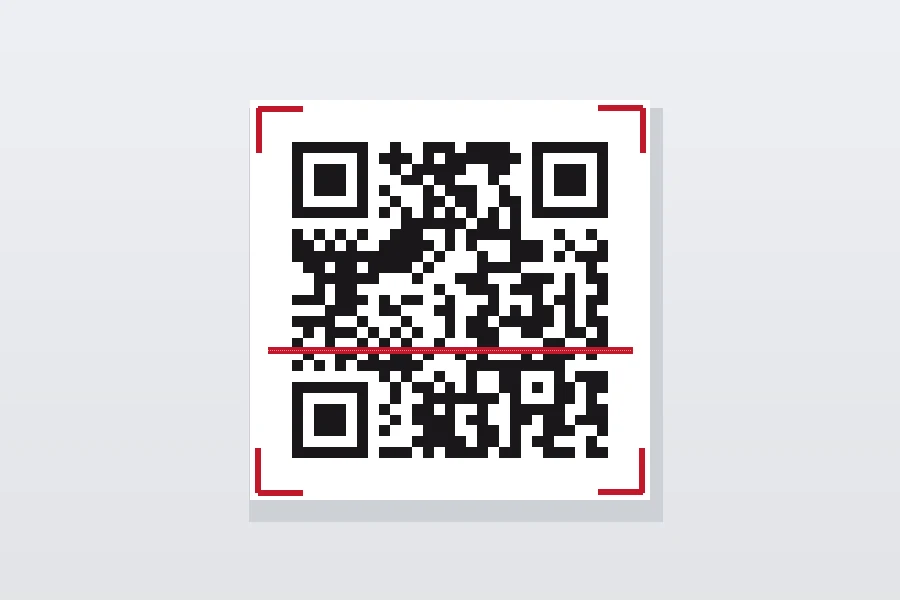
The QR code has settled onto receipts, posters, emails and stickers on the router. We got used to pointing a phone at it. But the phone is not always at hand, and scanning with a phone is not always a good idea. When you have the code right on your computer screen, you can read it there. And with a suspicious code, it is even safer.
Here is how, and when it comes in handy.
When it pays to read a QR code on a computer
- The code arrived by email or is on a website. It is on your screen, so why photograph it with a phone. A screenshot and you are done.
- It is in a document or on an invoice. A PDF with a QR payment, an invitation, a contract. Open it, crop out the code and read it.
- You want to type a Wi-Fi password into your computer. The code on the router carries the network login. Instead of typing the password from paper, you have it written out.
- The code is suspicious. And this is the most important reason. When you have no idea whose code it is, it is wiser to first see where it leads than to scan it with a phone that may open it right away.
How to do it, step by step
We built a QR reader for this. It runs entirely in your browser, so the image is not sent anywhere and you do not have to register.
- Open the QR reader.
- Get the image into it. You have a choice: drag it into the window with the mouse, paste it with Ctrl+V if it is in your clipboard, or click and upload a file. A screenshot works too.
- The tool reads the code and shows the content. For a link it shows it as text, for Wi-Fi it breaks out the network, password and security.
- If you want, you copy the content with one click.
If you do not have an image but have the code physically in front of you, click Scan with camera, allow access and point your computer’s camera at it. The code is read straight from the picture.
Safety first
This is the part not to skip. A QR code reveals nothing until you scan it. That is exactly what scammers exploit. They stick a fake code over a real one, send it in an email or put it on a poster, and when you scan it with a phone, a fraudulent page opens. It is called quishing, phishing through a QR code.
Reading the code on a computer gives you a head start. Our reader does not open the link itself. It shows it to you as text, so you can read the address calmly. If you see a foreign domain instead of the one you expect, you discard the code and nothing happens. You can also paste a suspicious link into our phishing email checker.
We wrote more about this type of scam in the article quishing: scam QR codes and how to avoid them. And when you need to create a QR code instead, use the QR code generator, which also has a guide on how to create a QR code for free.
Conclusion
A QR code is not a phone’s privilege. When you have it as an image, a screenshot or right on the screen, you read it on the computer in a few seconds, including the Wi-Fi password or contact inside. And with a code you do not trust, reading it on a computer is the safer route, because you see where it leads first and only then decide. Try the QR reader, it is free and runs entirely in your browser.
Working with QR codes, digital menus or QR payments in your business?
We will help with creating and safely using QR codes, from table stickers to payments on invoices. In person for companies in Liptov, remotely elsewhere.
I want helpThis article is part of our Software and systems overview.
Comments and questions 0
We keep the discussion to the point. Ads, links to other services, profanity and personal attacks will not be published. Neither will posts containing other people's personal data.
Frequently asked questions
How do I read a QR code when I have it as an image on my computer?
Can I scan a QR code with a computer camera?
Why would I read a QR code on a computer rather than a phone?
Is it safe to open a link from an unknown QR code?
Is my image sent to a server?
Need help with IT?
We will take care of your computers, networks and security - for businesses and households in the Liptov region.
Contact us