
Transferring data to a new computer: moving everything from the old one
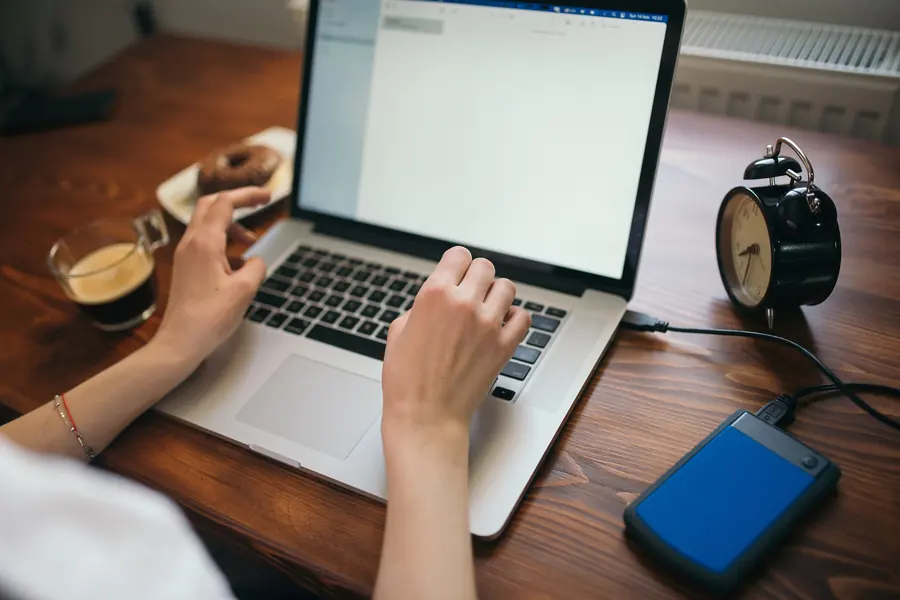
You bought a new computer and now you face moving everything from the old one. Without a plan, it is easy for something important to stay on the old machine. Let us go through what to transfer and how, so you do not lose anything.
What to transfer
- Files: documents, photos, videos and music.
- Bookmarks and passwords from the browser.
- Emails and contacts, if you keep them locally.
- Settings and program licenses.
Note that programs are not transferred by copying, they have to be installed anew on the new computer.
Transfer methods
- An external disk or USB stick: you copy the files to the disk and move them to the new computer. The simplest.
- The cloud: you upload the files to cloud storage and download them on the new computer.
- The network: a transfer directly between two computers over the home network.
- A Microsoft or Google account automatically syncs some settings, bookmarks and passwords.
- A transfer USB cable connects both computers directly over USB and copies files between them with no intermediate step. Handy when you do not have a large enough external disk.
- Built-in tools: Windows has the Windows Backup app, which moves folders and settings through a Microsoft account. macOS has the Migration Assistant, which transfers accounts, files and apps from the old Mac over the network or by cable.
What NOT to transfer
A new computer is a chance to start with a clean system, not to drag years of clutter along:
- Pre-installed bloatware and trial programs you do not use anyway.
- Old installation files and duplicate copies of documents collected over the years.
- Programs you have not used for a long time - install only the ones you really need.
Step by step
- Make a backup of the old computer.
- Transfer the files by the chosen method.
- On the new computer, install the programs you use.
- Sign in to accounts and services.
- Verify that everything is really there, including less visible places.
What not to forget
- Browser passwords, transfer them through your account or a password manager, not by retyping.
- Hidden folders, like Downloads, Documents and the desktop, where things often accumulate.
- Licensed programs that have to be activated anew. Some licenses are tied to the device - before the transfer, sign out (deactivate) them in the old program so you can activate them on the new computer.
- The browser profile, not just bookmarks and passwords, but also history, autofill and extensions. The easiest way is to sign in to the browser account (Chrome, Firefox, Edge), which syncs the profile.
- Email data, if you use a program like Outlook or Thunderbird that stores mail locally (a PST file or the profile folder), not a web account.
Checking after the transfer
Before you put the old computer away, make sure the new one really opens everything: open a few documents and photos at random, verify you can sign in to email and the main programs, and compare whether the file count in important folders matches. A small problem is far easier to catch now, while you still have the original at hand, than a month later.
The old computer
When you have everything transferred, securely wipe the data from the old computer before you sell it or send it for recycling. Simply deleting to the recycle bin is not enough.
Do not feel like doing it or worried you will forget something? Get in touch, we will transfer all the data and set up the new computer so you can work right away.
Do not feel like transferring data yourself?
We will transfer all your files, passwords and emails to the new computer and set it up so you can work right away. For homes and businesses in Liptov.
Book a data transferThis article is part of our Repair and maintenance overview.
Frequently asked questions
What is the easiest way to transfer data to a new computer?
Can installed programs be transferred from the old computer too?
How do I transfer passwords and bookmarks from the browser?
How do Windows Backup and the Mac Migration Assistant help?
What should I not transfer to a new computer?
How do I securely wipe data from the old computer after the transfer?
Need help with IT?
We will take care of your computers, networks and security - for businesses and households in the Liptov region.
Contact us