
Resizable BAR (ReBAR): the feature that can boost gaming FPS
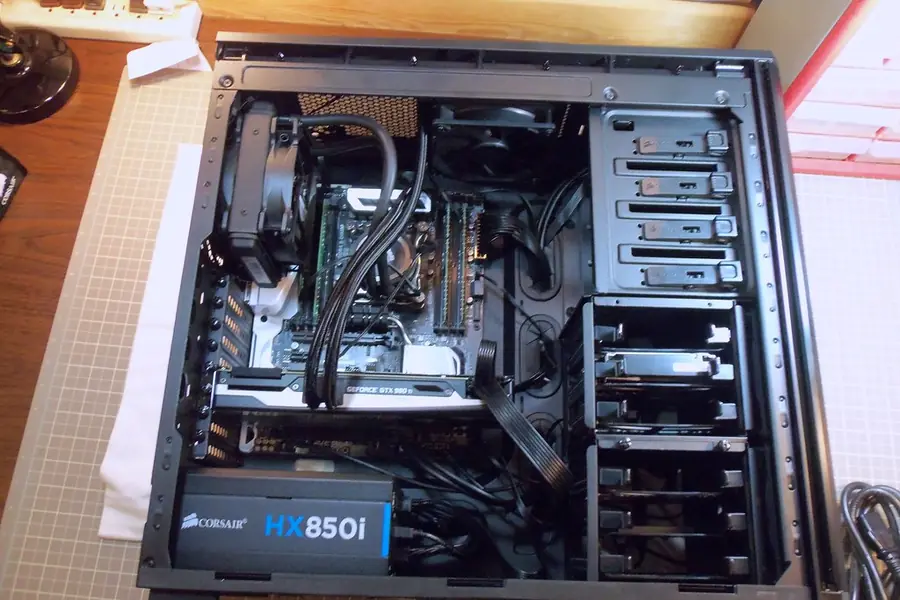
If you are looking for how to squeeze a little extra performance out of a gaming setup for free, you will run into the term Resizable BAR. It is sometimes incorrectly written as “resizable gamebar”, but in reality it is the Resizable BAR feature (ReBAR for short). Let us explain what it is, how it can add FPS and how to enable it.
What Resizable BAR is
Resizable BAR is a feature thanks to which the processor can access the entire graphics card memory (VRAM) at once. Classically, the processor saw the graphics memory only in small chunks (256 MB at a time), which was a needless brake. ReBAR removes this barrier and the communication between the processor and the graphics is smoother.
The abbreviation BAR stands for Base Address Register, that is the technical way the processor addresses the graphics memory. “Resizable” means this window can grow to the entire memory.
AMD’s version: Smart Access Memory
Beware of the names, it is the same thing under different names:
- Resizable BAR (ReBAR) is the general name, used by Intel and Nvidia.
- Smart Access Memory (SAM) is AMD’s marketing name for the same feature.
Technically it is the same thing, just named differently.
How it can add performance
Thanks to smoother access to the graphics memory, ReBAR can increase the frames per second (FPS) in games. The benefit varies:
- Noticeable in some games, especially at higher resolutions and in modern titles.
- Minimal or none in others.
- In exceptional cases even slightly lower, so for a specific game it pays to compare.
Generally it holds that it is a free improvement that on average tends to help. There is a separate article on smooth gaming and FPS.
What you need for it
For ReBAR to work, everything must work together:
- A supported processor.
- A motherboard with support and an up-to-date BIOS/UEFI.
- A compatible graphics card and up-to-date drivers.
- Booting in UEFI mode (not the older Legacy/CSM).
On newer setups everything tends to be ready, on older ones you need to verify support and possibly update the BIOS.
How to enable Resizable BAR
It is enabled in the BIOS, usually you need to turn on two items:
- Set Above 4G Decoding to Enabled.
- Set Re-Size BAR Support (or Resizable BAR) to Enabled.
Then save the changes and restart. On AMD graphics the feature may be called Smart Access Memory.
How to verify it is enabled
After enabling, check the status:
- In the graphics card control panel (Nvidia or AMD) there is usually a Resizable BAR item with the status On.
- Diagnostic tools (for example GPU-Z) show Resizable BAR: Enabled.
If it says Enabled, it works. If not, check the BIOS, drivers and boot mode.
What to keep in mind
- It is not a miracle. The benefit is nice, but do not expect double the FPS.
- Updates. Sometimes a newer BIOS or drivers help.
- Stability. In very rare cases it can cause problems, in which case it can be turned off.
When building a gaming setup, ReBAR is one of the things not to overlook, more in the articles on a custom gaming PC and how to choose a graphics card.
Conclusion
Resizable BAR (ReBAR), called Smart Access Memory at AMD, lets the processor access the entire graphics memory at once and can add FPS in games for free. You just need supported hardware, an up-to-date BIOS and drivers and enabling two items in the BIOS. It is a simple improvement worth having enabled for gaming.
Building or tuning a gaming computer and want to get the most out of it? Get in touch, we will design and tune the build, including settings like Resizable BAR.
We will fine-tune your gaming PC to the last FPS
We check the BIOS, drivers and settings like Resizable BAR, and advise on hardware choice. For households and businesses in Liptov.
I want my build tunedThis article is part of our Hardware and components overview.
Frequently asked questions
What is Resizable BAR and what is it for?
Is Resizable BAR the same thing as AMD Smart Access Memory?
How much extra FPS does Resizable BAR give in games?
What do I need for Resizable BAR to work?
How do I enable Resizable BAR in the BIOS?
How do I check whether Resizable BAR is actually enabled?
Need help with IT?
We will take care of your computers, networks and security - for businesses and households in the Liptov region.
Contact us