
Parental controls and a child account: protecting kids online
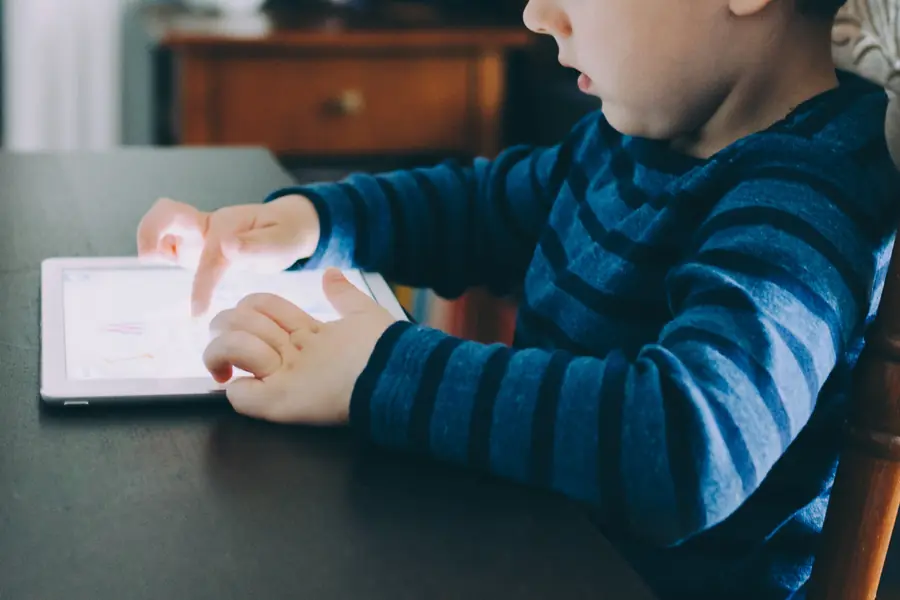
Children today grow up with a phone and tablet in hand, yet the internet is not always a safe place. Parental controls and a child account help keep kids safe online without you having to stand behind their backs. Let us explain how to do it.
What parental controls allow
Parental controls give you tools with which you can:
- Limit unsuitable content (sites, videos, games by age).
- Set screen time and the hours when the device is available.
- Approve purchases and downloads of apps.
- See an overview of what the child uses.
A child account
The best foundation is to create a separate child account for the child, not to let them onto yours. A child account has appropriate restrictions set from the start, and you as the parent manage them from your device.
On individual devices
- Android and Google: the Google Family Link service links the child account with yours and allows remote management, time limits, app approval and even seeing the location of the child’s phone.
- iPhone and iPad (Apple): the Screen Time feature with Family Sharing. You set time limits, content restrictions and location sharing.
- Windows and Xbox: the Microsoft Family Safety service. It manages time limits, an age filter, purchase approval and activity overviews across both the computer and the console.
- Game consoles (PlayStation, Xbox): their own parental controls with age limits and purchase approval.
All these tools are free and work in a similar way: you see an overview on your device and change settings remotely. All it takes is for the child to have a separate child account linked to yours.
Filtering at the router and DNS level
Settings on a phone only work on that one device. If you want to protect all devices in the household at once, handle it at the network level. Many routers have built-in parental controls (site filtering, time windows for Wi-Fi). Even simpler is to set a filtering DNS server in the router (for example free services such as Cloudflare for Families or OpenDNS Family Shield), which automatically blocks adult sites for the whole network. It is a great addition, but it does not replace the settings directly on the devices, which work outside the home Wi-Fi too.
What not to forget
- In-game purchases. Children can accidentally spend money, so require approval of every purchase.
- Communication with strangers. With games and social media, mind who the child is messaging.
- Keep the parental control password secret, otherwise the child will bypass it.
More important than technology
No setting replaces a conversation. Explain to children why we do not do certain things, how to recognize a scam and that they can tell you about anything unpleasant. Technology is just a tool, trust is the foundation.
Do you need help setting up parental controls on your family’s devices? Get in touch, we will set it up safely and explain how to manage it. This is also related to the overview of streaming platforms.
We will set up parental controls for you
We link child accounts, configure router and DNS filtering, and explain how to manage it all afterwards. For households and businesses in Liptov.
Get a safe setupThis article is part of our Cybersecurity overview.
Frequently asked questions
At what age does it make sense to set up a child account?
How does Google Family Link work and is it free?
Can parental controls be bypassed if the child knows the password?
Is a router filter enough, or do individual devices need setup too?
How do I prevent unplanned purchases in games and apps?
How should I handle a child talking to strangers online?
Need help with IT?
We will take care of your computers, networks and security - for businesses and households in the Liptov region.
Contact us