
Streaming games and recording your screen with OBS
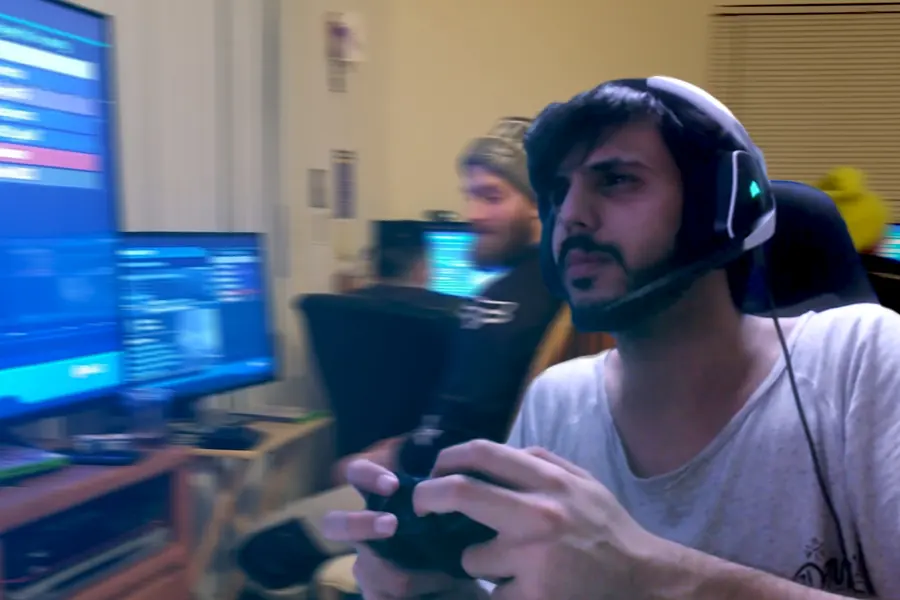
Watching streams on Twitch is one thing, but what if you want to broadcast or record yourself? It is not as complicated as it seems. Let us explain how to start streaming games and recording your screen with OBS and what you need for it.
What OBS is
OBS (Open Broadcaster Software) is free software for streaming and recording your screen. Most creators use it, because it is powerful, open and free. It handles live broadcasting to Twitch or YouTube as well as recording video to a file.
What you will need
- A sufficiently powerful computer, because gaming and streaming at once load the processor and graphics. A custom gaming computer helps.
- Fast internet with a good upload, because you are broadcasting the picture out, which we write about in the article download vs upload.
- A microphone and possibly a camera for better contact with viewers, more in the article on a webcam and microphone.
Scenes and sources
OBS works with scenes and sources. A scene is one view (for example the game itself or a break), a source is what is shown in it: the game’s picture, the camera, the microphone, text or an image. You build your own scenes and switch between them during the broadcast.
Streaming versus recording
- Streaming broadcasts the picture live to a platform like Twitch or YouTube, where viewers watch you in real time.
- Recording saves the picture to a file that you later edit and publish.
OBS handles both, and they are often done at the same time.
Key settings: bitrate and codec
In the OBS settings, what matters most is the bitrate (data rate) and the codec:
- Bitrate determines how much data the stream sends. For 1080p at 60 frames per second around 6000 kb/s is commonly used. A higher bitrate means a sharper picture, but also a bigger demand on the upload.
- Codec is the way the video is compressed. H.264 works everywhere and is the safest choice. HEVC (H.265) and the newer AV1 give better quality at the same bitrate, but for now only newer cards and some platforms support them.
Hardware versus software encoder
The encoder is what actually compresses the picture:
- A hardware encoder uses the graphics card and barely loads the processor. This includes NVENC (Nvidia), AMF (AMD) and QuickSync (Intel). For gaming and streaming at once it is the best choice.
- The software x264 computes the picture on the processor. It gives slightly better quality at a low bitrate, but it loads the processor heavily, so the game may suffer.
Managing the audio
Sound is the most common problem with streams. In OBS, set the volumes separately: the game audio, the microphone and any background music. That way the microphone is not drowned out by the game. Watch out for music that may breach copyright, as the platform will mute the stream. Before broadcasting, always check the levels (the meters in OBS) and test a recording.
What to watch out for
- Set a sensible quality according to the computer’s performance and the upload speed, otherwise the stream will stutter.
- Watch the temperatures, because long streaming heats the computer up considerably.
- Test everything in advance, especially the sound, which is the most common problem with streams.
Want to start streaming or need a computer that can handle it? Get in touch, we will advise and build a custom gaming computer ready for streaming.
A computer built and ready for streaming
We help set up OBS and build a gaming computer that handles playing and broadcasting at once without stuttering. For households and businesses in Liptov.
Get a computer for streamingThis article is part of our Gaming overview.
Frequently asked questions
What is OBS and is it free?
How powerful a computer do I need for game streaming?
What bitrate and codec should I set in OBS?
How fast an internet connection do I need to stream?
What is the difference between streaming and recording in OBS?
Why can viewers not hear my microphone over the game?
Need help with IT?
We will take care of your computers, networks and security - for businesses and households in the Liptov region.
Contact us