
USB made clear: versions, speeds and connector shapes
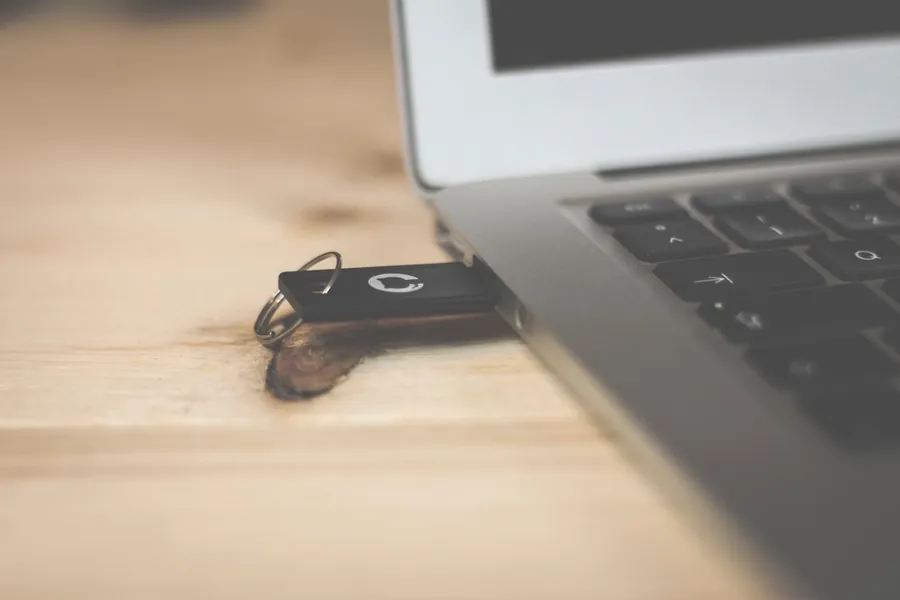
Almost every device has USB today, yet even some technicians get lost in its names. USB 3.2 Gen 2x2, USB-C, Power Delivery, Thunderbolt. Let us sort it out clearly and in depth: what versions and speeds mean, what the connector shapes are, and what you can actually plug into what.
What USB is
USB (Universal Serial Bus) is a universal interface for connecting devices to a computer and also for powering them. That is why a single cable connects a mouse, a drive, a phone or a monitor, and many of them charge over USB too. With USB, two independent things get mixed up and cause most of the confusion: speed (the protocol version) and the connector shape. Let us separate them.
Versions and speeds
The speed of USB is determined by its version. Here be careful, because the organization behind USB has renamed its versions several times, so the same speed has up to three names:
- USB 2.0 transfers 480 Mbit/s. It is still perfectly enough for a mouse, keyboard, printer or USB stick.
- USB 3.0 (renamed to USB 3.1 Gen 1, later USB 3.2 Gen 1) transfers 5 Gbit/s, roughly ten times more than 2.0. It is also called SuperSpeed.
- USB 3.1 Gen 2 (alias USB 3.2 Gen 2) handles 10 Gbit/s.
- USB 3.2 Gen 2x2 reaches 20 Gbit/s, but only over the USB-C connector.
- USB4 offers 20 or 40 Gbit/s, and the newer USB4 v2 even up to 80 Gbit/s.
A detail that confuses: the speeds are in megabits and gigabits (Mbit, Gbit), not bytes. The real transfer rate in megabytes per second is roughly eight times lower, so 5 Gbit/s means about 500 MB/s in practice.
Connector shapes
The connector shape decides whether the cable will physically plug in. The ones you meet most often:
- USB-A is the classic flat rectangle you know from computers and chargers.
- USB-B is almost square, usually found on printers and older devices.
- Mini-USB and Micro-USB are smaller connectors from older cameras and phones.
- USB-C is the modern small oval connector that is reversible, so you plug it in blindly and either way up. It is gradually replacing all the others.
Watch out: USB-C is not the same as speed
This is the most common mistake. USB-C is only the connector shape, not the speed. A cable or device with USB-C may use plain USB 2.0 inside, or USB4 at 40 Gbit/s. You cannot tell by looking. That is why two seemingly identical USB-C cables can differ like day and night: one only handles charging and slow transfer, the other also fast data and a picture to a monitor. So when buying, always check what speed and functions the cable really supports.
Compatibility: what plugs into what
USB is backward compatible, which makes life easier. A newer device plugged into an older port works, but adjusts its speed to the slower one. A fast drive in an old USB 2.0 port will therefore run only at 2.0 speed.
The limit is the shape. USB-A will not fit into a USB-C socket and vice versa, but there are adapters and cables with different ends (for example USB-A on one side and USB-C on the other). So when buying a drive or accessory, it pays to check which connectors your computer has.
Power and charging over USB-C
USB carries not only data but also power. The USB Power Delivery (PD) standard lets you charge even demanding devices over a single thin USB-C cable: a phone, a tablet, and with enough power even a laptop. Newer chargers handle 100 W and more, so one quality USB-C charger can serve several devices. When charging a laptop, just check that the charger and cable provide enough power in watts.
Thunderbolt and USB-C
You may have heard of Thunderbolt. It is an even faster interface (Thunderbolt 3 and 4 handle 40 Gbit/s) that uses the same USB-C connector and is compatible with it. Over a single port it can carry data, a picture to a monitor and power at the same time. You recognize it by the small lightning icon next to the port.
How to spot a fast port
A few small things help:
- A blue color inside a USB-A port usually marks USB 3.0 (5 Gbit/s).
- Faster ports often have an SS logo (SuperSpeed), or SS10 for ten-gigabit ones.
- A lightning icon marks Thunderbolt, while a battery or plus icon marks a port that charges even with the computer switched off.
Practical tips to finish
A cable is not just a cable. A cheap USB-C cable from a corner shop may only handle slow USB 2.0, even if you plug it into a modern port. For fast drives and monitors it pays to buy certified cables with a clearly stated speed and power. Mind the length too, at high speeds quality cables tend to be shorter.
Not sure which cable or device to buy?
We will help you pick the right cables, adapters and chargers, and find out why a device does not work over USB as it should. For homes and businesses in the Liptov region.
Get buying adviceThis article is part of our Hardware and components overview.
Frequently asked questions
How do I tell if a USB port is fast?
Is USB-C always fast?
What speeds do the individual USB versions have?
Can I plug a new USB device into an old port?
Can a laptop be charged over USB-C?
What is the difference between Thunderbolt and USB-C?
Need help with IT?
We will take care of your computers, networks and security - for businesses and households in the Liptov region.
Contact us