
Remote access: RDP, VNC, TeamViewer, AnyDesk and RustDesk
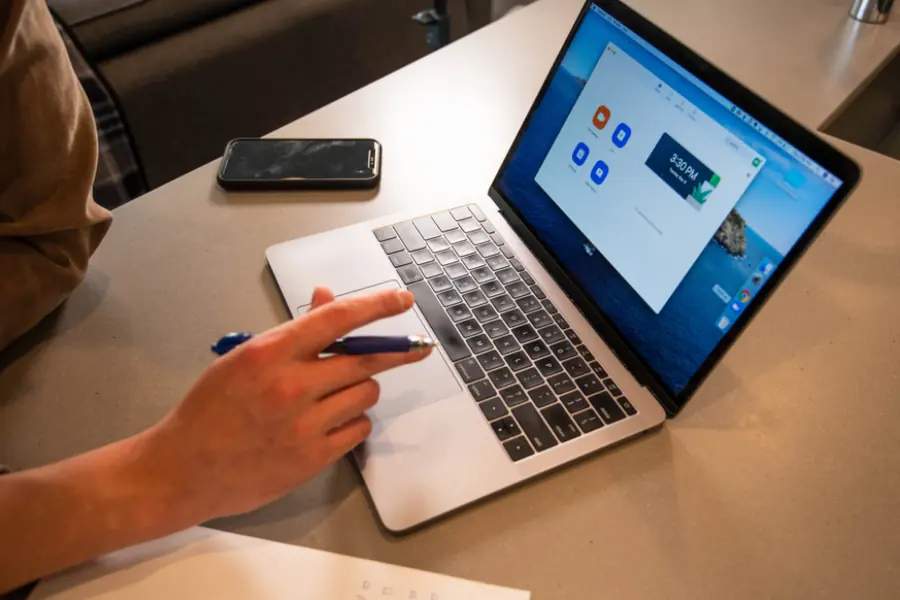
Remote access means controlling a computer from another place, as if you were sitting at it. You use it for tech support, server management and working from home. There are many tools and each suits something different. Let us go through them and say which one to pick when.
RDP: the standard for Windows
RDP (Remote Desktop Protocol) is a protocol by Microsoft, built right into Windows. The server (the thing you connect to) is available in the Pro and higher edition, the Home edition can only be a client.
RDP has two big advantages. It is very efficient, so the image is smooth even on a weaker connection. And it opens its own session - it does not mirror the physical screen, so someone else can work at the computer at the same time and you do not see them.
The main risk is security. RDP exposed directly to the internet is a magnet for attacks. Attackers constantly scan it and try passwords by brute force (trying thousands of combinations), plus a vulnerability in the protocol itself occasionally shows up. So never expose RDP directly on a public IP - only connect over it through a VPN or through a secure gateway.
VNC: open and cross-platform
VNC is an open protocol (called RFB) and works across systems - Windows, Linux, macOS. Unlike RDP it mirrors the actual screen, so you see exactly what is on the remote computer’s monitor. That is handy for support, when you want to see the same thing as the user.
There are several implementations: RealVNC, TightVNC, TigerVNC, UltraVNC. VNC is simpler than RDP, but also less efficient (the image tends to be slower) and in its default setup it does not encrypt the traffic. So never let it run bare on the internet - tunnel it through a VPN or through SSH.
TeamViewer and AnyDesk: quick help through NAT
These are commercial apps that solve the biggest problem of RDP and VNC: reaching a computer behind a router without configuring the network.
TeamViewer works on the principle of an ID and a password. You just run the program on both sides, dictate the number and password, and you are connected. It passes through NAT and the firewall because the connection is brokered by the provider’s cloud server. It is cross-platform and free for personal use, but business (commercial) use is paid and the provider can detect it.
AnyDesk works very similarly. It is light and fast thanks to its own codec (DeskRT), which handles slower links well too. It is also free for personal use and paid for businesses.
If you do not want to deal with port forwarding or a VPN and you need to help someone once in a while, these two tools are the simplest path.
RustDesk: open source you can host yourself
RustDesk is an open source alternative to TeamViewer and AnyDesk. It is just as simple to use (ID and password), but it has one key advantage: it can be self-hosted. You build your own relay and ID server on your own server, so the traffic does not go through someone else’s cloud and you have full control over privacy. And it is free.
That makes it an ideal choice for companies and home labs where you do not want to depend on a third-party service or pay for licenses. The price is that you have to manage the server yourself.
Other tools worth mentioning
- Chrome Remote Desktop - free, very simple, runs through the browser and a Google account. Good for quick personal access to your own computer.
- Parsec - low latency and high image quality, designed for gaming and graphics work at a distance.
- Splashtop - a commercial service aimed at companies and remote support.
- NoMachine - a fast cross-platform tool, popular with Linux.
- Apache Guacamole - a gateway through which you connect straight from the browser with no client to install (it handles RDP, VNC and SSH).
- Windows Quick Assist - built into Windows, for one-off help without installing anything.
Comparison table
| Tool | Type | Platforms | Through NAT with no setup | Price | Self-host | Best for |
|---|---|---|---|---|---|---|
| RDP | Protocol | Windows | No | Included with Windows | Yes | Windows within a company, over VPN |
| VNC | Protocol | Win, Linux, macOS | No | Free | Yes | Cross-platform admin, Linux |
| TeamViewer | App | Win, Linux, macOS, mobile | Yes | Free personal, paid business | No | Quick support through NAT |
| AnyDesk | App | Win, Linux, macOS, mobile | Yes | Free personal, paid business | No | Quick support, slower links |
| RustDesk | App | Win, Linux, macOS, mobile | Yes | Free | Yes | Self-host and privacy |
| Chrome Remote Desktop | App | Win, Linux, macOS, mobile | Yes | Free | No | Simple personal access |
Security first
Remote access is a powerful tool, and so also a tempting target. Stick to the basics:
- Never expose RDP or VNC directly to the internet. Always hide them behind a VPN or a gateway.
- Use strong and unique passwords and, wherever you can, turn on two-factor authentication (a second login step).
- Regularly update the system and the tools themselves - vulnerabilities keep appearing.
- Watch out for scammers. The classic scenario is a call from fake support that guides you to install TeamViewer or AnyDesk and takes control of the computer. Do not give remote access to any stranger.
With servers it also pays to think about access when the system does not boot. There is a separate article about out-of-band server management on that. And since remote access starts at the network, also go through how to secure a router.
Which tool when
- RDP - when you manage Windows computers within a company and connect over a VPN.
- VNC - when you need cross-platform access or manage Linux.
- TeamViewer or AnyDesk - when you want to help quickly through NAT without configuring the network.
- RustDesk - when you want your own self-host and control over privacy.
- Parsec - when it is about performance, smooth image or graphics work at a distance.
Conclusion
There is no single best remote access tool, there is only the right one for your situation. For company Windows it is RDP over VPN, for quick help it is TeamViewer or AnyDesk, for privacy and your own control it is RustDesk. They have only one thing in common: without a VPN, strong passwords and updates, every one of them is a risk.
Do you need to set up secure remote access for a company or a home? Get in touch and we will design a tailored solution.
Need secure remote access?
We set up RDP over a VPN, RustDesk on your own server, or another solution tailored to your company or home. For households and companies in the Liptov region.
Set up remote accessThis article is part of our Software and system overview.
Frequently asked questions
What is the difference between RDP and VNC?
Is it safe to expose RDP directly to the internet?
Why is TeamViewer or AnyDesk worth using instead of RDP?
What is RustDesk and how does it differ from TeamViewer?
How do scammers abuse remote access?
Which remote access tool is the best?
Need help with IT?
We will take care of your computers, networks and security - for businesses and households in the Liptov region.
Contact us