
Congested WiFi and channels 1, 6, 11: why 90 % of networks get it wrong
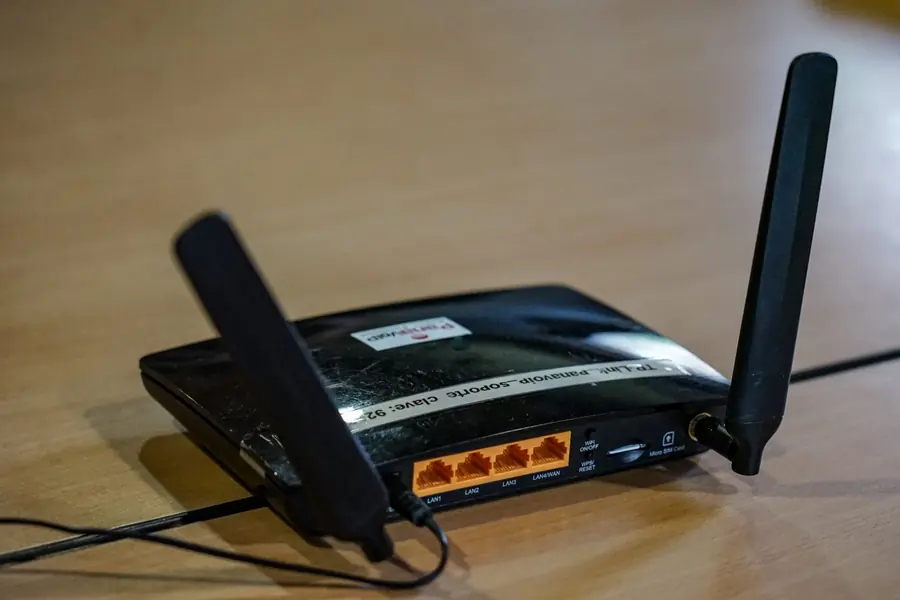
Photo: Reise Reise · CC BY-SA 4.0 · Wikimedia Commons
WiFi stutters, is slow and fluctuates, even though you have fast internet and a new router. Very often a congested band and wrongly set channels are to blame. The vast majority of home networks have this problem, yet it can be solved. Let us explain how it works and why channels 1, 6 and 11 are key.
Why WiFi networks interfere with each other
WiFi broadcasts on radio frequencies, and there are a limited number of them. In densely populated places (apartment blocks, streets of family houses), many routers broadcast on the same band at once. When several networks broadcast on the same or overlapping frequency, they interfere with each other’s signal, similar to many people speaking at once in one room. The result is slow and fluctuating WiFi.
The 2.4 GHz band and the channel problem
The most congested tends to be the older 2.4 GHz band, because it has a long range and almost everything uses it. This band is divided into channels (1 to 13), but there is a fundamental catch:
Neighboring channels overlap with each other. Channel 2 interferes with channels 1 and 3 and so on. In reality there are only three channels that do not overlap with each other: 1, 6 and 11.
This means that if you want a clean band without interference, your network and your neighbors should use only these three channels. Any other channel overlaps with two at once and makes a mess of the band.
Why 90 % of networks get it wrong
And here is the core of the problem. The vast majority of routers come from the factory set to automatic channel selection or to some channel between 1, 6 and 11 (for example 3, 4, 9). The automatics also often do not pick ideally, and many people never changed the setting.
The result? In one apartment block, dozens of networks broadcast on various overlapping channels and the whole band is congested. If everyone used only 1, 6 and 11, the interference would be significantly smaller. That is exactly why the correct channel setting is one of the most effective and cheapest ways to speed up WiFi.
Channel width: another source of interference
The channel is not everything, the channel width matters too, that is how much frequency space the network takes:
- 20 MHz is a narrow, “polite” width. On 2.4 GHz it is the only sensible choice, because it takes only one channel.
- 40 MHz and more is a wide width. It gives higher speed, but on 2.4 GHz it takes several channels at once, so it interferes even more with itself and the neighbors.
A common mistake is leaving 40 MHz width on 2.4 GHz. In a congested environment this paradoxically worsens the situation. On 2.4 GHz therefore leave 20 MHz, keep the wide width for the cleaner 5 GHz.
The solution: what to set
- On 2.4 GHz fix the channel to 1, 6 or 11, depending on which is least occupied in your area.
- On 2.4 GHz set the width to 20 MHz.
- Use the 5 GHz band (or the newer WiFi 6 and WiFi 7), which has more channels and less interference. There the wide width makes sense.
- Check the surroundings. WiFi analysis apps show which channels are occupied and which is free.
Correct WiFi placement and, for a larger house, a mesh network instead of a repeater help too.
Conclusion
Congested WiFi is often the result of wrongly set channels and channel width, and that in the vast majority of home networks. The secret of a clean 2.4 GHz band is three non-overlapping channels (1, 6, 11) and a width of 20 MHz. A few minutes in the router settings can work wonders with WiFi, often more than a new router.
Want WiFi without stutter and dropouts?
We will analyze the interference around you and tune the channels, width and network layout to fit. For homes and businesses in the Liptov region.
Tune my WiFiThis article is part of our Computer networks overview.
Frequently asked questions
Why is my WiFi slow even though I pay for fast internet?
Which WiFi channels do not overlap on 2.4 GHz?
What channel width should I set on 2.4 GHz?
Is automatic channel selection better than a fixed channel?
Does switching to 5 GHz help against interference?
How do I find out which WiFi channel is free in my area?
Need help with IT?
We will take care of your computers, networks and security - for businesses and households in the Liptov region.
Contact us