
Windows 11 Phone Link: your phone right in the computer
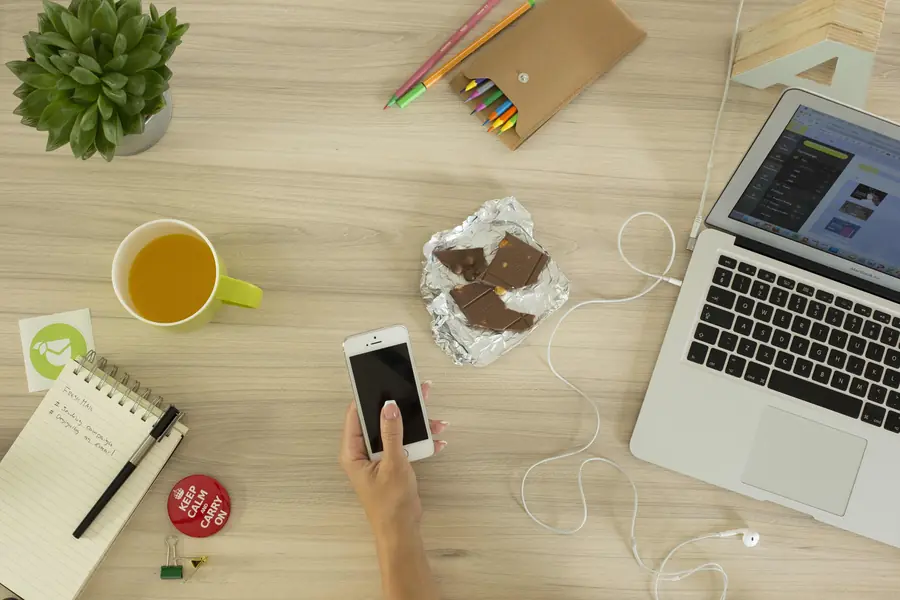
Constantly shifting your gaze between the computer and the phone breaks concentration and steals time. Windows 11 has the Phone Link app for this, which makes your phone available right on the computer screen. Let us explain what it can do and how to set it up.
What Phone Link is
Phone Link is a Windows 11 app that connects your phone to the computer, so you operate part of the phone right from the computer. You do not have to reach for the phone with every message or call, you handle many things straight on the keyboard and the large screen.
What you can do
With an Android phone it offers the most:
- Messages (SMS). You read and write texts right from the computer, comfortably on the keyboard.
- Notifications. You see notifications from the phone on the computer, so nothing slips by.
- Calls. Via Bluetooth you can receive and make calls right from the computer.
- Photos. The latest photos from the phone are at hand immediately, without a cable and without sending through the cloud.
- File transfer between the phone and the computer by dragging with the mouse.
On selected phones (for example some Samsungs) you can even open phone apps right on the computer.
Android versus iPhone
An important difference: on Android, Phone Link works fully, on iPhone the support is more limited. With an iPhone you usually handle the basics like calls, messages and contacts, but advanced things (photos or app mirroring) tend to be Android only. The article iPhone versus Android covers the differences between the systems.
What you need for it
- Windows 11 (it works on Windows 10 too) and the Phone Link app on the computer.
- A companion app on the phone (Link to Windows).
- The same Microsoft account on the computer and the phone.
- Bluetooth turned on (especially for calls) and ideally the same WiFi network. There is an article on Bluetooth versions, Bluetooth versions.
How to set up Phone Link
- On the computer, open the Phone Link app.
- On the phone, install the companion app and launch it.
- Scan the QR code that appears on the computer and sign in with the same Microsoft account.
- Grant permissions on the phone (messages, contacts, notifications) and turn on Bluetooth.
After pairing, the phone appears in the Phone Link window and you can control it from the computer.
What to keep in mind
- Privacy. Your messages and notifications show up on the computer. On a shared computer, count on that.
- Bluetooth must be on, otherwise calls through the computer will not work.
- The range of features depends on the phone. You get the most out of it with Android, or with selected models.
Who it suits
- Working at the computer, where it is handy to deal with a message or a call without reaching for the phone. The article on the perfect home office also helps.
- Quick photo transfer from the phone to the computer without a cable.
- Less distraction. You have notifications in one place and do not have to pick up the phone as often.
Conclusion
Phone Link in Windows 11 connects your phone to the computer and lets you handle messages, calls, photos and notifications right on the screen. It works best with Android, on iPhone the support is more modest. Setup is a matter of a few minutes and the reward is less shifting of your gaze and more comfort.
Need advice on connecting devices or setting up computers in your company? Get in touch, we will be happy to help.
We connect your devices so they work as one
We set up Phone Link, device pairing and file sharing exactly to match how your household or business works. For households and businesses in the Liptov region.
Get in touchThis article is part of our Software and system overview.
Frequently asked questions
How do I set up Phone Link in Windows 11?
Why does Phone Link do less on iPhone than on Android?
Can someone else see my messages through Phone Link?
Do I need Bluetooth turned on all the time to use Phone Link?
Can Phone Link transfer files between the phone and the computer?
Does Phone Link work on old Windows 10?
Need help with IT?
We will take care of your computers, networks and security - for businesses and households in the Liptov region.
Contact us