
Locked BIOS and DriveLock: when your computer asks for a password you do not have
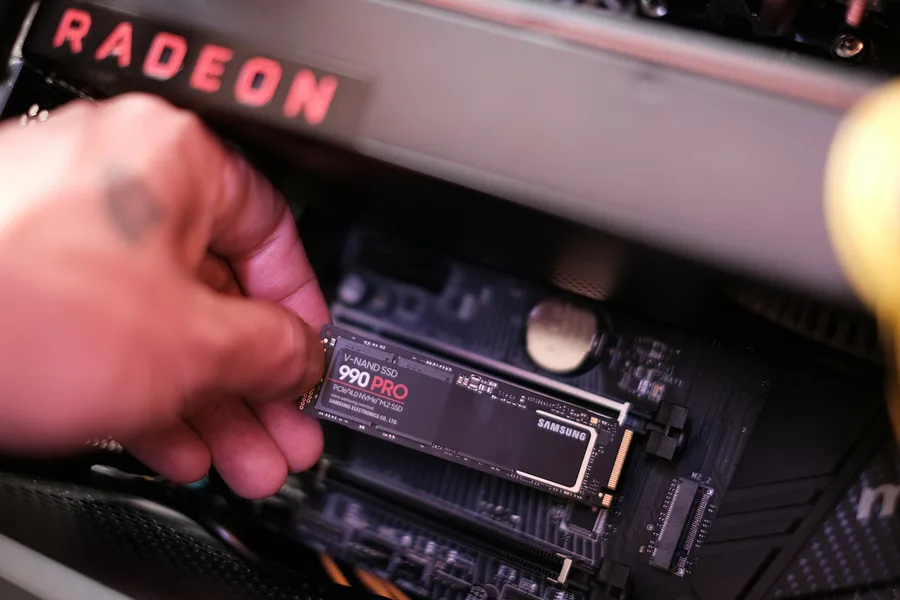
Photo: Samsung Memory · Unsplash
You pick up a cheap ex-corporate computer, or you move an SSD from an old laptop into a new one, switch it on, and instead of the system you get a blunt password prompt. No hint, no “forgot your password?“ link. It looks like the end of the road, but it is not always. The key is to work out which of two completely different locks is actually blocking you, because each one is dealt with differently.
Two locks people mix up
| BIOS password | DriveLock | |
|---|---|---|
| Where it is stored | in the motherboard memory | in the controller chip of the drive |
| What it blocks | access to settings or booting the machine | releasing data from the drive |
| Applies in another computer | no | yes |
| How it is cleared | a jumper on the board or via the manufacturer | the correct password, otherwise only a full wipe |
The difference matters. A BIOS password is a property of the computer, so you can simply pull the drive out, plug it in elsewhere and get your data. DriveLock is a property of the drive and travels with it. It does not care what you plug it into or what operating system you point at it.
The BIOS password
It comes in two forms. A power-on password is requested right after you switch the machine on and without it the computer will not boot at all. An administrator password lets the system start but keeps you out of the settings, so you cannot change the boot order or anything else.
Desktops and workstations usually have a password clear jumper on the board, often labelled PSWD or CLR PWD. The procedure is always similar: disconnect power, move the jumper, power on once, power off, put it back. Two important catches:
- A CMOS reset is not the same thing. Removing the battery or using the CLR CMOS jumper restores default settings but leaves passwords alone. That is by design, not a fault.
- Stringent security. Business boards often have an option that makes the board ignore the password jumper entirely. In that case the password cannot be cleared in hardware.
Laptops have no such jumper and the password lives in protected memory. Advice like “take the battery out for an hour“ does not work on machines from recent years. What remains is the manufacturer’s service, which removes the password once you prove ownership with a proof of purchase. Anyone promising a “universal unlock code from the internet“ is selling you hope, not a solution.
DriveLock and why it is far tougher
There is one thing here that surprises even experienced users: modern SSDs are always encrypted. Even a cheap one, with no settings involved. The drive controller holds an encryption key and everything you write passes through it. As long as the drive is not locked it does this automatically and you never notice.
When DriveLock is switched on (vendors also call it HDD password, Hard Disk Password or Security Password), the password does not lock the data, it locks that encryption key. Without the password the controller will not release the key and refuses every read and write request. That is why:
- the drive cannot be reformatted, since formatting is just another write,
- another computer or another system does not help, the lock is enforced by the drive controller itself,
- a data recovery lab does not help either, because even if it read the memory chips directly, all that sits on them is the encrypted form.
Technically there are two mechanisms. Older SATA drives use ATA Security, newer NVMe drives the TCG Opal standard. Business computers often enable this automatically under company policy, so that a lost or stolen machine gives up nothing. They do exactly what they are meant to. The trouble only starts when the machine ends up on the second-hand market and nobody knows the password.
DriveLock versus BitLocker: how they differ
This is the most common mix-up we hear in the workshop. Both protect the data on a drive, but they work at completely different levels and, more importantly, they behave completely differently once a password is lost.
| DriveLock | BitLocker | |
|---|---|---|
| Location | in the drive firmware | in the Windows operating system |
| Asks when | before the system boots | after boot, or automatically via the TPM chip |
| Key | in the drive controller chip | sealed in the TPM chip on the board |
| Recovery | none | 48-digit recovery key |
| Forgotten | the data is gone for good | you unlock it with the recovery key |
| Enabled in | in the computer BIOS | in Windows, or through company policy |
| Other computer | yes | yes |
The difference everything hinges on is the recovery key. When you switch BitLocker on it asks where to save a 48-digit recovery key, and you can store it in a Microsoft account, print it, or keep it on file at the company. If something goes wrong, for example after a motherboard replacement or a firmware update, that key unlocks the drive. DriveLock has nothing of the sort. There is no key to file away and no manufacturer who knows it.
One more thing that surprises people: BitLocker and DriveLock do not conflict and can run at the same time. You first enter the DriveLock password so the drive releases data at all, and only then does BitLocker take care of encryption within the system. It sounds like double protection and technically it is, you just need to be aware that one of the two is unforgiving.
A note for the technically curious: BitLocker used to be able to hand encryption over to the drive itself (eDrive mode) instead of doing it in software. After flaws were found in several vendors’ implementations, Microsoft stopped using that by default, so today BitLocker encrypts in software and does not rely on the drive’s own encryption. On macOS the same job is done by FileVault, which also has its own recovery key.
How to tell which lock is blocking you
This is the most useful part and it takes a few minutes:
- Take the drive out and connect it to another machine, ideally through a USB adapter.
- If the drive can be read (you see its partitions, or at least its size, and reads work), it is not locked. The prompt comes from the original motherboard and you are dealing with a BIOS password.
- If the drive cannot be read in another computer either, or reports zero capacity or errors on every read, the lock is inside it and it is DriveLock.
One note from practice that can be confusing: a drive may have Opal protection taken over and still read perfectly over USB. A USB adapter passes ordinary reads and writes, but it does not pass security commands. The original board asks for them at startup, sees the protection and requests a password, while another computer knows nothing about it. In that case the drive is physically fine, it only needs to be returned to a clean state.
PSID revert: the last resort for the drive
If you do not need the data and just want the drive back, there is the PSID revert. PSID is a 32-character code printed on the drive label, usually under the barcode. Using that code the drive throws away its encryption key, releases the protection and returns to factory state.
What you need to know:
- All data is gone for good. This is not a way to regain access, it is a wipe. Discarding the key makes the contents unreadable in a single moment.
- You must have the drive physically in your hands. That is precisely why the code is on the label, so it cannot be abused remotely.
- An ordinary USB adapter usually will not do. Security commands are not passed through it and the drive has to sit in a real M.2 or SATA connector.
After a revert the drive is fully usable, with no shortened lifespan or reduced capacity. If you would rather not experiment, we will do it for you, including a check that the drive is genuinely healthy and not showing early signs of failure.
When there is no way back
Let us be honest, there are cases nobody can fix:
- A forgotten DriveLock password and data you need. Manufacturers keep no universal key, which is the whole point of the protection. The drive can be put back into service, the data cannot.
- An administrator password on a laptop with stringent security. Only the manufacturer’s service can help, with proof of ownership.
With business machines the old rule therefore counts twice: data you cannot afford to lose belongs in a backup, not solely on one encrypted drive.
Stuck on a password nobody knows?
We will find out whether the board or the drive itself is blocking you, advise what can still be saved, and return the drive to service. We also check used computers before you buy them. At home and for companies in the Liptov region.
Get in touchHow to avoid it
A few habits that save a lot of frustration:
- When buying a used computer, let it boot before you pay and try to enter the BIOS. Any password prompt is a reason not to buy until the seller sorts it out.
- When selling or retiring a machine, switch the lock off before you hand it over. It is also no substitute for wiping the drive properly.
- If you enable the lock yourself, store the password in a password manager. This is exactly the kind of password nobody remembers a year later.
- Do not confuse it with system encryption. BitLocker and FileVault have a recovery key you can back up, DriveLock has none. The comparison above covers this in detail.
Summary
When a computer asks for a password at startup, first work out where the prompt comes from. A BIOS password is tied to the board and you can simply take the drive with your data out of it. DriveLock is tied to the drive, travels with it, and without the correct password the data cannot be obtained by any means. The drive can be saved with a PSID revert, the data cannot. It sounds harsh, but that is exactly what this protection is for.
This article is part of our Service and maintenance overview.
Comments and questions 0
We keep the discussion to the point. Ads, links to other services, profanity and personal attacks will not be published. Neither will posts containing other people's personal data.
Frequently asked questions
What is DriveLock?
How do I tell whether the drive or the BIOS is locked?
Can a locked drive be reformatted?
What is a PSID revert?
Can data on a locked drive still be recovered?
How do I get into a BIOS protected by a password?
What is the difference between DriveLock and BitLocker?
How do I avoid this when buying a used computer?
Need help with IT?
We will take care of your computers, networks and security - for businesses and households in the Liptov region.
Contact us